Getting started
Start here: farm to kitchen
Choose your side, understand the journey and find the next useful action.
Watch the walkthrough · 0:40
Find your way around
Narrated demonstration. Use Play, pause or replay at your own pace. Use fullscreen for small details. The written steps below remain available.
Download video: Find your way aroundRead the transcript
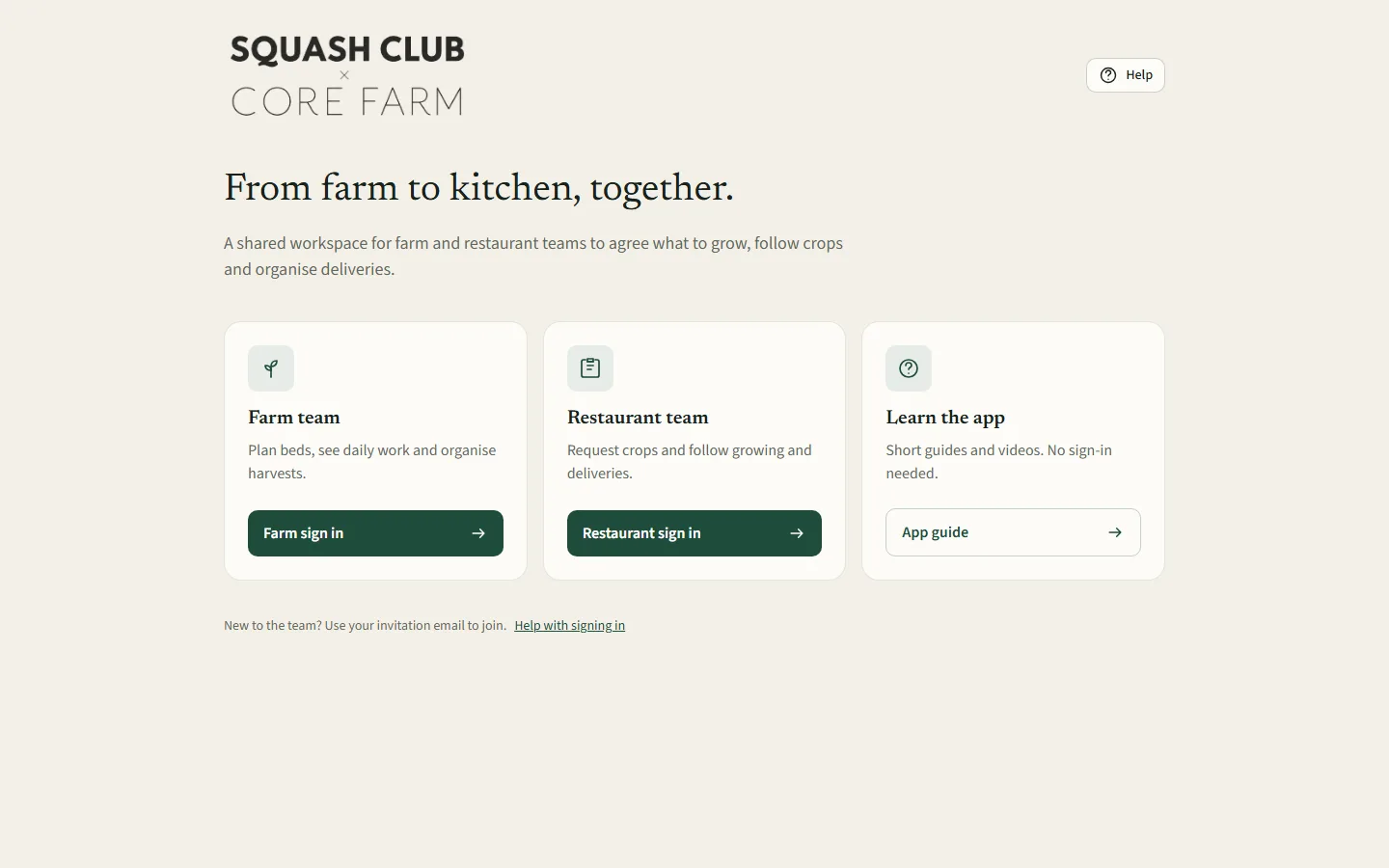
Farm and kitchen work each have their own workspace. Start at the home page and choose the entrance for your account.
Farm staff start on Today, with jobs, growing reminders and delivery progress. Choose the job you need from the navigation.
Restaurant teams start on their overview. Browse crops, build a private request and follow the farm's answer and growing updates.
An agreement comes before planting, measured harvest and dispatch. Partnership produce is included at harvest; it does not need another purchase.
Use a question mark for one field or Help for the full guide. It opens separately, keeping your unfinished form in place.
Jump to a section
Choose your side
- From the welcome page, choose Farm sign in or Restaurant sign in for your invited account.
- Choose App guide to browse the instructions and videos before signing in.
- Use the account invited to that business. Farm staff begin on Today; restaurant teams begin on their overview.
- Use the main navigation to open a job. On a phone, use the navigation at the bottom and its More menu for other jobs.
Example
A chef opens Crops to plan a menu. A grower opens Today to see the day's work.
The growing journey
A restaurant asks for a crop, amount and delivery period. The farm reviews the request. The farm can also propose a programme for the restaurant to answer.
An agreement comes before a planting plan. The farm places crops into beds, records growing work and harvest, then prepares delivery or collection.
The restaurant follows the grow log, shared updates, conversation and deliveries. Produce in the agreed partnership does not need another purchase at harvest.
Example
Agree 10 lettuce heads each week, plan the crop, record the harvest, then send that week's amount. 'Agreed', 'harvested' and 'sent' are separate facts.
Get help without losing your place
- Tap a question mark for help with one field, or open the page's folded explanation.
- Choose the page's Help link for a longer guide. It opens separately so your form stays where it is.
- Choose another page from Contents. On a phone or tablet, open Contents first; choosing a page closes the menu.
- Use Find a guide to narrow the contents, or search the guide overview for a job such as 'weekly delivery' or 'rotate a bed'. Use Feedback to report something that does not work.
What this guide describes
This wiki explains the current app. The app's available controls, saved records and access checks remain the authority; the guide does not fix the product's future design.
Pictures use demonstration data. Names, amounts and options in your account may differ, and some controls need an administrator or another permission.
The public welcome page explains how farm and restaurant teams work together and links to their sign-in pages and this guide. Business records require authorised access.
See the screen
Reviewed 2026-10-12. This is a guide to current behaviour; the app may change. Actions depend on your permissions.