Requests
Grow log: share progress, photos and explanations
Keep drafts private, share with the right restaurant and retain an honest growing history.
Watch the walkthrough · 0:54
Share useful growing news
Narrated demonstration. Use Play, pause or replay at your own pace. Use fullscreen for small details. The written steps below remain available.
Download video: Share useful growing newsRead the transcript
Keep the restaurant informed through the agreement's Grow log. Read milestones, shared news, changes and shipments before adding another update.
Add a growing update with a clear progress note and the date observed. A photo is optional; choose an accepted image and describe it so the update makes sense without seeing the picture.
Save draft keeps the update farm-only. Share with restaurant publishes it to this agreement's restaurant when allowed, after photo processing is ready. It is not a public farm post.
Use older updates or draft history for context. Discard an unwanted draft or withdraw a shared update when needed. History remains, and a downloaded copy cannot be recalled.
After a failed send or upload, keep the form open and correct the message. Check the grow log if the result was uncertain. Use Conversation for discussion and Changes and issues for delivery problems.
Jump to a section
Read the shared journey
- Open an agreed request and choose Grow log.
- Review growing milestones, shared updates, changes and shipments.
- Open older updates or draft history when you need more detail.
Example
The grow log can show Sown on Monday, a shared germination photo later and the week's shipment when it leaves the farm. These are separate records in one journey.
Write an update and add a photo
- Choose Add a growing update with update-creation access.
- Write the useful progress note and the date observed. Choose a JPEG or PNG photo if wanted.
- Add a short description of the photo so it is understandable without seeing it.
- Save draft for private farm review, or Share with restaurant if you have publishing permission.
Example
Write 'The first heads are forming; we are still expecting next week's delivery' and add a described photo of the bed. Save it as a draft if a farm administrator should check it first.
Camera, file and visibility limits
The device file chooser can offer the gallery or camera where the device supports them. The accepted image formats are JPEG and PNG, up to 5 MB and 24 megapixels; an unsupported format needs an accepted copy.
A photo needs its description. Remove photo clears that selection and its description. The observed date cannot be in the future.
Drafts are farm-only. Sharing exposes the update and authorised image to this request's restaurant, rather than to other restaurants or the public.
Photo processing must finish before a draft can be shared. An unfinished upload is not a published customer update.
Publish, discard or withdraw
- Review a ready draft and publish it when authorised.
- Discard an unwanted draft, or withdraw a shared update when it should no longer appear to the restaurant.
- If a submission fails, keep the form open, check its message and retry the same update and photo after correcting the problem.
Keep evidence without duplicate updates
Draft and withdrawn records remain in the farm history. Withdrawing removes customer access in the app, but cannot recall a copy someone already downloaded.
Supported failed submissions retain entered text and the selected file while the page stays open. A full reload or starting a new update can lose the unfinished photo; this is not an offline upload queue.
When the save result is uncertain, check the grow log before submitting again. Use the recovery control for the same pending photo rather than creating repeated updates.
Latest updates are shown first and older entries are folded. Use Conversation for a discussion, and Changes and issues for a delivery problem or agreement revision.
See the screen
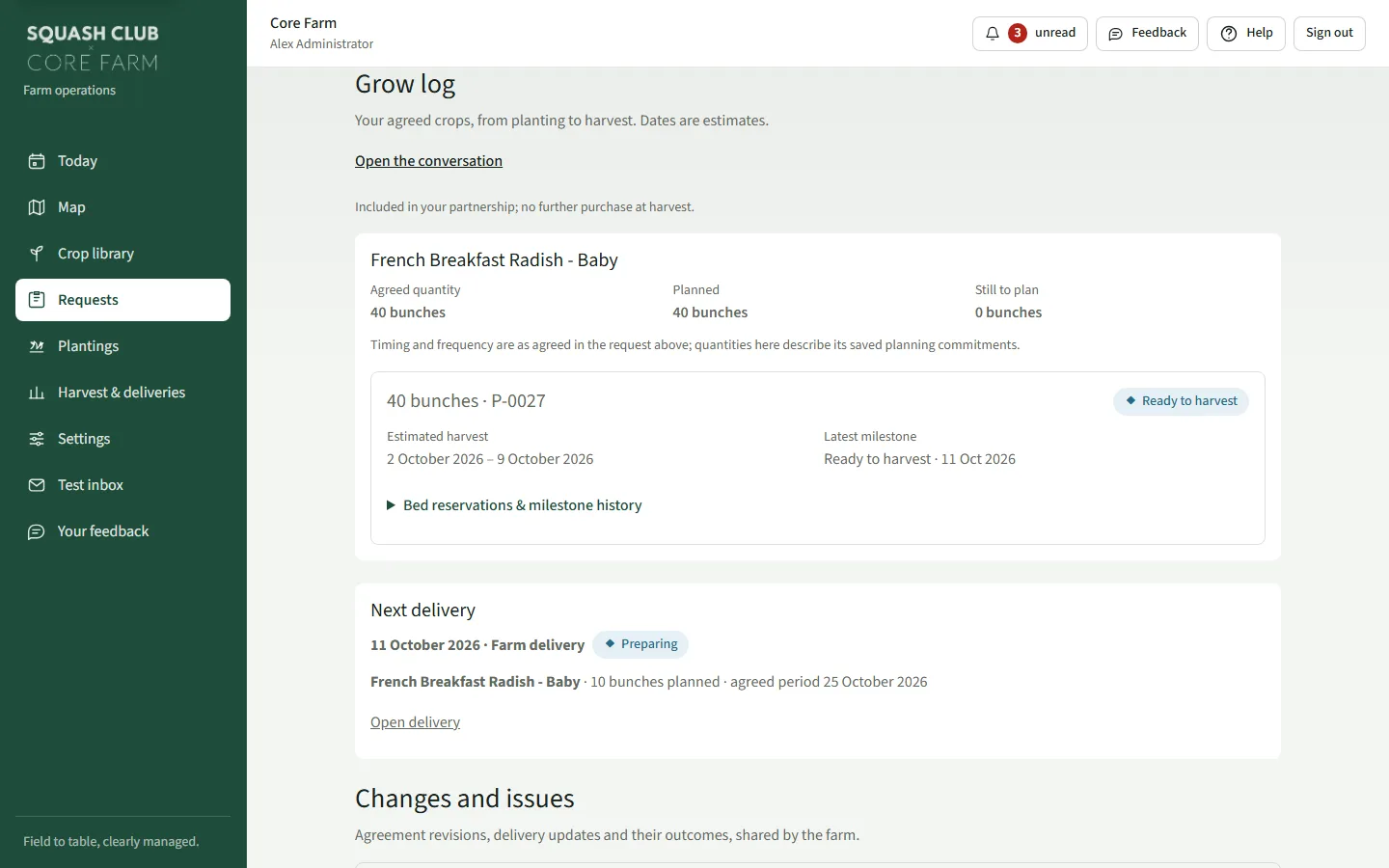
Reviewed 2026-10-11. This is a guide to current behaviour; the app may change. Actions depend on your permissions.