Harvest & delivery
Deliveries: prepare, pack, send and hand over
Use actual stock for farm delivery or collection, with the correct agreement week and retained notes.
Watch the walkthrough · 1:05
Prepare, pack and hand over produce
Narrated demonstration. Use Play, pause or replay at your own pace. Use fullscreen for small details. The written steps below remain available.
Download video: Prepare, pack and hand over produceRead the transcript
Open Prepare in Harvest and deliveries. Choose the restaurant, plan date, delivery or collection, destination and any assigned worker that fit this job.
Add the agreed planting, usable batch and amount. For repeating supply, check the named week or period explicitly. It follows the agreement's start date, so changing the visit date must not silently move that commitment.
Check before saving. A draft reserves nothing; starting preparation reserves usable stock and allowance. Reopen a saved draft to edit it. If stock is unavailable, review its condition and reservations rather than creating forecast stock.
Enter what was actually packed, then save packing to make it Ready. Packed is not Sent. Record actual dispatch for farm delivery, or Collected at collection, and record receipt at the proper handover.
Use reasons for a problem, reschedule or cancellation before dispatch. Sent produce cannot be cancelled as though it never left. Delivery notes keep numbered snapshots; address corrections, quantity corrections and inspected returns are separate actions.
Jump to a section
Build a delivery or collection
- Open Harvest & deliveries and choose Prepare with dispatch permission.
- In Plan, choose the restaurant, planned date, Farm delivery or Collection, destination and an optional assigned worker.
- In Crops & stock, choose an agreed planting, its usable harvest batch, amount and agreement period. Add more lines as needed.
- Check the preparation, then save a draft or start preparation.
Example
Prepare lettuce heads and herb bunches for one restaurant on Friday. Each line keeps its own planting, harvest batch, unit and agreement allowance.
Drafts and stock shortages
A draft holds no stock and is not yet shown to the restaurant as a preparation. After saving, use Open saved preparation and Edit draft or Start; the earlier wizard is no longer an editable unsaved form.
Starting preparation reserves usable stock and the agreement's available amount. Another worker's preparation can change availability before yours starts, so the server checks again.
If stock is unavailable, use the record/review-stock link in a separate tab and Refresh stock on return. Read whether it is missing, held, reserved or used up.
The same planting can use several batch lines when needed. Different units are not combined into one misleading quantity total.
Choose which agreement period this supplies
- For a repeating agreement, review the selected delivery week or period on each crop line.
- Choose the intended period explicitly if delivering early, late or for a different week.
- Check the remaining allowance and save. Review the period again when editing an existing draft.
Example
A weekly programme beginning on Wednesday uses Wednesday-to-Tuesday periods. A shipment on Friday can supply that period; a late shipment must still be assigned to the week it is fulfilling.
Planned date is not the period
Periods follow the agreement's first-needed date. Weekly, fortnightly and monthly programmes are not all Monday-based calendar weeks.
The initial suggestion follows the planned date until you choose a period yourself. An explicit selection is kept rather than silently moved when dates change.
Rescheduling a delivery changes its visit date, not the agreement period. Check its crop lines separately if the commitment itself should change.
The planting's remaining contribution and the whole agreement's allowance across other plantings and preparations are separate checks. Starting preparation validates both.
Record packing and dispatch
- Open a Preparing delivery and enter Actually packed for each line, including zero when a line could not be packed.
- Save packing to make it Ready. At least one line must have a positive packed amount.
- For Farm delivery, record Sent with the actual dispatch date. For Collection, record Collected when it is handed over.
- Open the delivery note and record the received quantities at handover for a sent farm delivery.
Example
Reserve 10 heads but pack only 8. Save 8 as actually packed; send those 8, then record 7 received if one was rejected at handover. The received amount does not silently return stock to the farm.
Who can do what and when stock changes
Dispatch managers control preparation and sending. An assigned worker with picking permission can pack the preparation without receiving wider dispatch authority.
Packing cannot exceed its reserved amount and does not itself send produce. Unused reservation is released according to the saved packed amounts.
Sent or Collected deducts the actual stock once and records dated shipments in the relevant agreement periods. Actual send and handover dates cannot be in the future.
Collection completes handover at collection. Farm delivery separates leaving the farm from recording receipt at the restaurant.
Saving positive packing for a published Collection preparation queues a ready-for-collection notice for eligible restaurant members. It is checked against the current ready state and plan before sending; collection, cancellation or a later plan change can suppress a stale notice. Packing a Farm delivery does not send this collection notice.
Handle a problem and retain the documents
- Record a preparation problem, reschedule it or cancel it before dispatch with a clear reason.
- Use Deliveries for active work and History for completed, cancelled or corrected records.
- Open the numbered delivery note to print or save it. Use an authorised correction when its destination needs changing after dispatch.
History is not overwritten
Cancelling an unsent preparation releases its reservation. A sent delivery cannot be cancelled as if it never left the farm.
Issued delivery notes snapshot the dispatched quantities and details. A destination correction creates a new version while retaining the original document.
Quantity mistakes belong in shipment correction, and produce physically returned belongs in inspected stock returns. Neither is an address edit.
The restaurant follows published preparation, shipment and handover information for its own agreement. A private draft is not a promised dispatch.
If a reschedule or destination edit is refused, loses its response or becomes stale, keep its text and compare the latest history before retrying. A record that became closed keeps the unfinished text visible but cannot accept that old action.
Record a simple shipment from the grow log
The request's Record shipment shortcut is useful for a simple actual dispatch. Choose the committed planting, date, amount and agreement period, then save when authorised.
It still needs sufficient usable, unheld and unreserved harvest stock from the same planting and unit in one eligible batch. Use Prepare for split batches or fuller packing and destination details.
What the shortcut records
It creates a stock-backed sent delivery, dated shipment and delivery note, rather than merely a loose progress message. The shortcut records its destination as not recorded, so use full preparation when a destination is needed.
Recording sent does not confirm restaurant receipt. If a shipment entry is wrong, use the authorised void/correction action with a reason; its original stays in history.
Voiding a mistaken shipment does not establish a usable physical return. Record actual returned stock separately after inspection.
See the screen
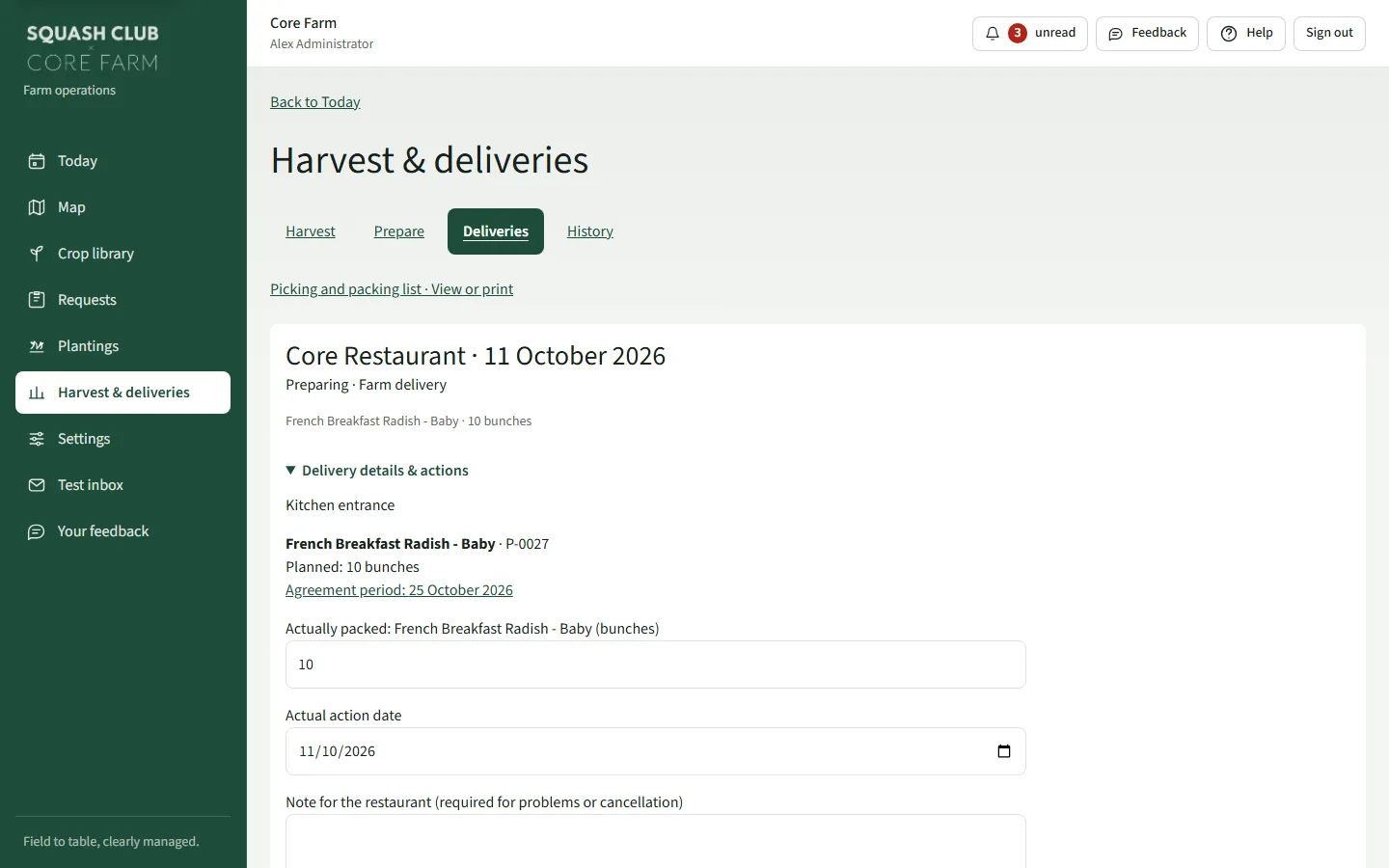
Reviewed 2026-10-16. This is a guide to current behaviour; the app may change. Actions depend on your permissions.