Map & planting
QR labels: scan a bed or rack and record work
Print a lasting location label, use existing crop pages and select a shelf when needed.
Watch the walkthrough · 0:55
Scan a bed or rack label
Narrated demonstration. Use Play, pause or replay at your own pace. Use fullscreen for small details. The written steps below remain available.
Download video: Scan a bed or rack labelRead the transcript
A location code links workers to the normal bed or crop workspace. Open the bed or rack, create its label when allowed, and check the printed name and reference.
Use the farm's stable reachable address before printing and laminating. Test the code on the intended phone. A local test address must reach the farm computer from that phone.
Scan with the device camera and sign in if asked. Check the bed name, then choose its crop or level. Empty, mixed or partly filled ground offers choices rather than guessing a crop.
One code serves the rack. Named levels help identify where an existing crop sits; they do not create extra ground capacity. Work recorded from a level still belongs to the whole planting.
Reprint a damaged current label, or replace its issue to retire old printed information. Follow changed or obsolete-label messages and remove old paper after replacement or bed removal.
Jump to a section
Make a location label
- Open the bed or rack details and choose Create QR label when authorised.
- Check its location name and printed reference, then print or reprint the label.
- Test it on the intended phone before laminating and attaching it to the correct bed or rack.
Example
Attach one label to a rack. Scanning opens that rack's normal bed page, where the worker selects the growing level and crop.
A usable address for a real phone
Permanent labels need the farm's configured stable HTTPS address. The QR goes through a stable scan route, so its destination can follow the current app and crop records.
A localhost test label points to the computer itself, not a phone. Local test printing needs a configured address reachable by the phone, such as the development computer's Wi-Fi address on the same network.
The app distinguishes local test labels from permanent ones. Changing a temporary host later can make a printed test label unreachable.
Scan and use the existing workspace
- Scan with the device camera and sign in with an authorised farm account if asked.
- Check the location name. Choose the crop or growing level when the bed page offers a choice.
- Use Record what happened on the crop, plan into free ground, or open a linked agreement to share a photo.
Why the destination can differ
A fully occupied bed with one current crop and no levels can open the crop directly. Empty, partly filled, mixed-crop or multi-level areas open the bed for a choice.
Future plans are not treated as the current crop. The same valid label follows the current location record when crops change.
Scanning does not grant access. Restaurant users cannot enter the farm workspace through a QR label. If scanning is difficult, enter the printed reference from Growing areas.
Add rack levels and identify a crop
- On the bed or rack, add a named level and optional height, and set its order.
- Assign an existing crop from that bed to the level for the dates it is there.
- Change or end the assignment when its position changes; review the recorded level history.
Example
Name levels 'Lower' and 'Upper', then tag an existing planting on Upper from its placement date. Scanning the rack lets the worker choose Upper without another QR scan.
Current level limits
There is one QR per bed or rack today. Levels are descriptive location tags, rather than independent growing capacity, tray inventory or permission to overlap ground allocations.
A crop must already be allocated to that bed. Its level dates must fit its ground allocation, and overlapping tags for that crop are checked.
The date a crop is removed from a level is the first day it is no longer there. Removing a level retains history and requires a current choice instead of following an obsolete level link.
Recording work from a level still records it against the whole planting. It does not record watering or harvest for only that shelf's portion.
Handle changed or obsolete labels
- If the app warns that a bed changed, check the actual location before continuing.
- Reprint the current issue when the paper is damaged. Replace the issue when the old printed information should be retired.
- Remove obsolete paper labels after replacement or bed removal.
Reprint versus replace
Reprinting keeps the same QR issue and reference. Replacing creates a new issue and retires the old one.
A name or shape revision can warn that the printed description needs checking. A removed or revoked location must not lead a worker into an update for a different bed.
If an already-open form loses its valid scan context, a save can be refused. Keep the unfinished entry and reopen a verified current location.
See the screen
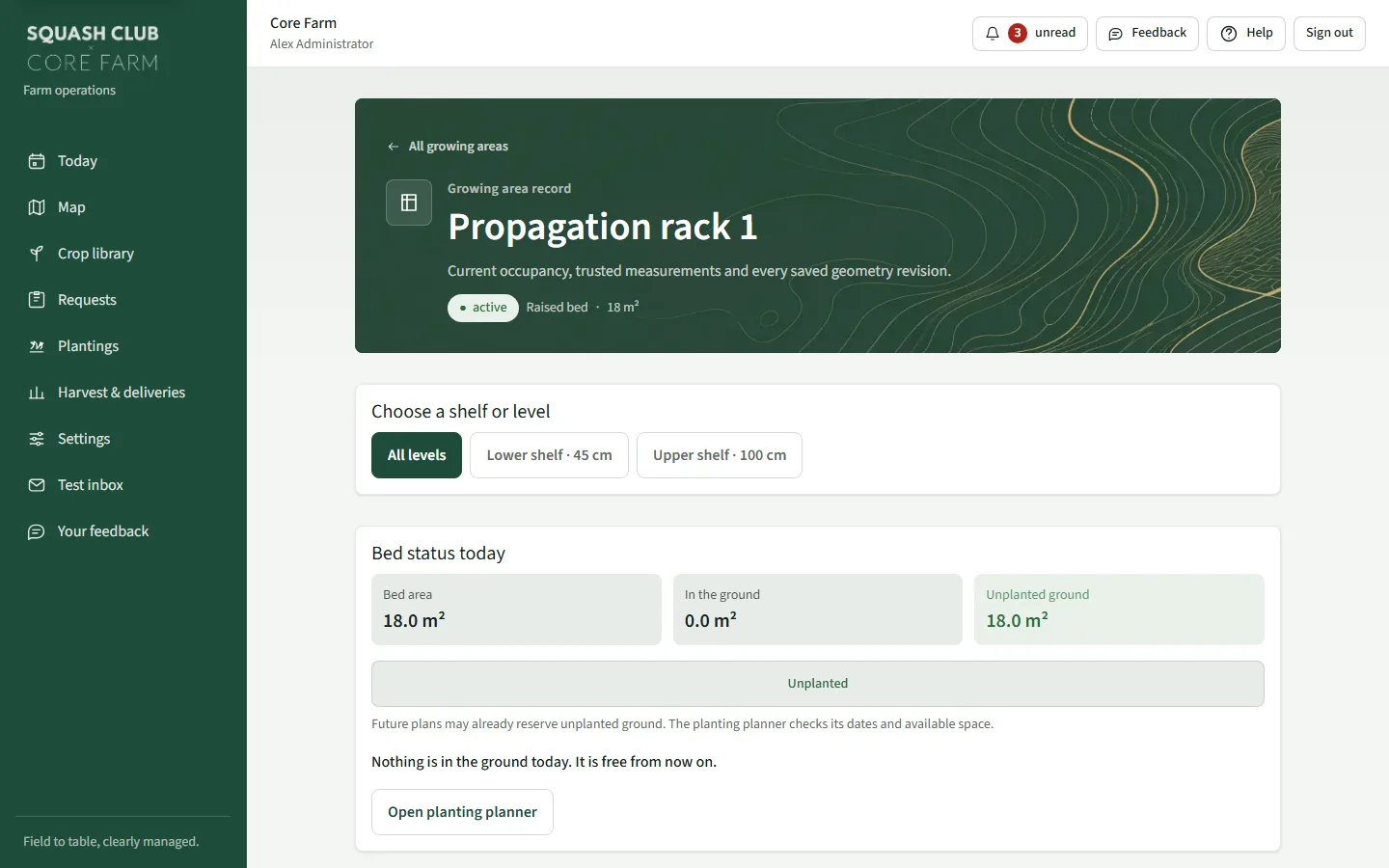
Reviewed 2026-10-11. This is a guide to current behaviour; the app may change. Actions depend on your permissions.