Map & planting
Planting plans: put an agreement into beds
Work back from the needed date, choose a plant goal and place valid patches across available ground.
Watch the walkthrough · 1:02
Put a growing plan into beds
Narrated demonstration. Use Play, pause or replay at your own pace. Use fullscreen for small details. The written steps below remain available.
Download video: Put a growing plan into bedsRead the transcript
For restaurant growing, open the agreement's Planning section and Place visually. Check its crop and automatic dates. For farm growing, choose A crop for the farm and review your own crop and dates.
Review the suggested plant goal and its assumptions. Without matching yield, explicitly confirm a meaningful farm estimate and extra allowance. Plant spaces and extra plants are not guaranteed harvest or a larger restaurant agreement.
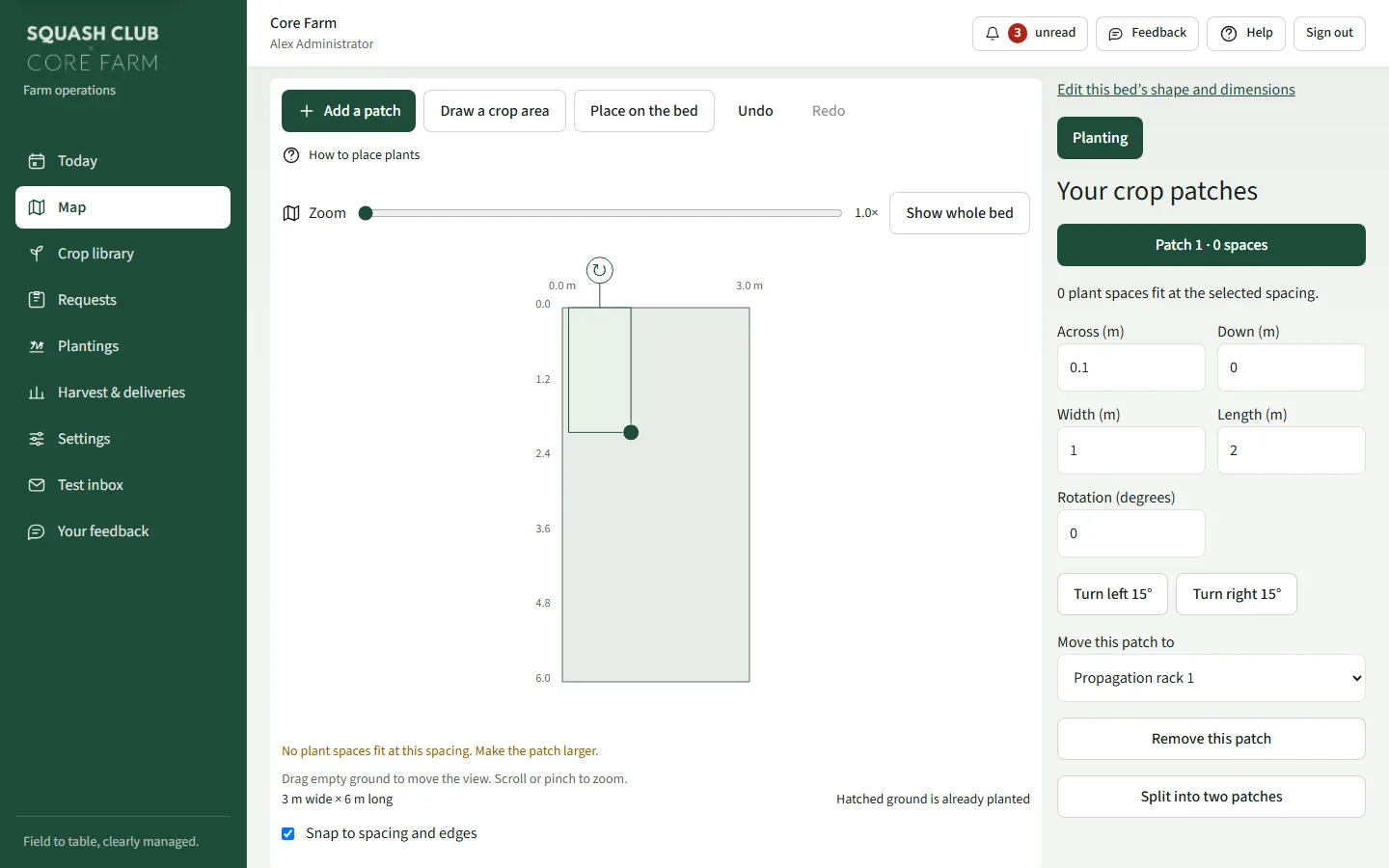
Choose suitable free ground. Add a rectangular patch, draw an outline or place a patch on the bed. Move, resize and rotate it, or use exact controls. Add another bed when you need more space.
Review written warnings before saving. A red patch can be too small, overlap ground or fit no plants after spacing and margins. Panning and zooming change the view, not the crop size.
Check dates, assumptions, patches and the amounts supplied, then save and wait for confirmation. A kept browser draft reserves nothing. Saved plans retain history; allowed revisions need a reason and stop once growing begins.
Jump to a section
Start with the agreement and dates
- For a restaurant crop, open its agreed request, choose Planning and Place visually. For farm growing, open Plant your beds and choose A crop for the farm.
- Check the chosen crop and automatic dates. Use manual dates only when the actual plan needs a different window.
- Work through Crop, Place and Save, then check the supplied amount before reserving ground.
Example
A restaurant needs heads on 20 June and the crop takes up to 60 days. The planner works back to a sowing date; if that date has passed, it shows the timing risk instead of pretending the request can still be met on time.
Dates and crop choice
An agreed request fixes the library crop to the agreed product. Switching to farm growing makes the farm's crop choice available again.
Automatic timing uses the cautious end of known sow-to-harvest timing and preserves the restaurant's needed date. Unknown or established-plant timing needs an explicit plan rather than an invented sowing date.
Ground use must contain the planting's sowing and growing window. The ground-free date is exclusive: the crop no longer occupies that ground on that date.
When an unfinished layout would be changed by a new source or dates, review the apply-or-cancel choice. Changing the camera does not change the saved ground geometry.
Choose how many plants to place
- Review the suggested plant goal from matching library yield, or enter a goal for the plan.
- Without matching yield, review the farm estimate, its output per plant and extra allowance, then explicitly confirm it.
- Check that the restaurant amount and the growing allowance describe different things.
Example
For 100 heads without a matching yield, the head estimate starts at one head per plant with 20% extra: 120 plants. Confirm or change that farm assumption; the restaurant agreement still asks for 100 heads.
Library yield versus a farm estimate
A matching per-plant yield uses its cautious output and contingency for a suggestion. Per-area and per-row yield need their own ground calculation rather than an invented output per plant.
Units other than the supported head assumption need the farm to enter a meaningful output per plant. The app will not guess how many plants make a kilogram, crate or bunch.
A confirmed farm estimate is recorded with that plan and its reason and actor. It is not silently added as a crop-library yield profile.
For farm growing, leaving the optional plant goal empty lets the valid layout's plant spaces determine the total. Plant spaces are a spacing calculation, rather than a guarantee of harvested output.
Place crops in part of one or several beds
- Choose a bed with suitable free ground. Use Add a patch for a rectangle, Draw a crop area for an outline, or Place on the bed to choose a position.
- Drag the patch to move it, use the round corner to resize and its rotation control to turn it. Use exact measurements for precise changes.
- Add another patch or bed when the crop needs more ground. Move a patch between beds, remove it or split a rectangle where useful.
- Use Suggest a layout to fill the remaining goal, or explore fitting the selected beds. Review the result and use Undo or Redo if needed.
Example
Place most of a crop in the free half of one bed, then a smaller patch in another. A crop does not need a whole standard bed when its spacing fits the available shapes.
Red warnings, edges and spacing
A red patch can be away from the bed edge. Read its written warning: it may be smaller than the 0.25 m² minimum, overlap another patch, intersect planted ground or a hole, or fit no plant spaces after spacing and margins.
The bed outline, all patch edges, date-overlapping occupancy and spacing clearances matter. Hatched ground is already allocated during this plan's window.
Snap to spacing and edges helps placement. Rotation applies to crop rows and their outline; exact controls remain available without dragging.
The dots are calculated plant spaces. They are not individual stored plant records, actual germination counts or guaranteed yield.
Move the view, then save the plan
- Drag empty ground to pan and use wheel or pinch to zoom. Use Show whole bed, the zoom control or keyboard view controls when needed.
- Check all patch warnings, crop assumptions, dates and the agreement amount this plan supplies.
- Save and wait for the server confirmation. Open the resulting plantings or Saved plans to continue.
Drafts, saved plans and history
The view is bounded; zooming and panning do not resize crops. Normal form controls and browser zoom retain their own behaviour.
Keep draft stores a layout for this browser tab. Restore kept draft checks current beds, dates, spacing and the agreement; it does not reserve ground and does not restore a farm-estimate confirmation as if it were new consent.
Saving creates the planting patches, reserves valid ground and records the assumptions and supplied commitment. One request can use several plans and a planting can serve several commitments.
For repeating agreements, the supplied amount is per agreement period, rather than the sum of every week in the programme.
A saved plan is shown as saved, rather than leaving editable controls that look unsaved. Authorised staff can revise an unsown plan with a reason from Saved plans; started crops and stale assumption versions restrict revision. Superseded versions remain in history.
The map's allocation editor can also remove an eligible unsown plan with a reason. Its contribution returns to the planning queue and the cancelled planting reference remains in history; this is different from deleting a crop that was already grown.
Use a yield estimate or reserve a whole bed
Plan from yield estimate needs compatible spacing and a positive yield range in the agreed unit. It supports per-plant, per-area and per-row ground estimates, using the selected bed and suitable additional beds when available.
Reserve whole bed is a simpler alternative for an allocation that uses that whole growing area. It does not invent a plant count for an unmeasured drawn area.
When the automatic plan cannot fit
Automatic ground layouts require supported exact bed dimensions and matching environment and method. A missing yield, unit mismatch, unsupported strategy or insufficient ground has a specific explanation.
Follow the crop-editor link to fix a genuine missing assumption, or use an explicitly confirmed visual farm estimate where appropriate. Do not change units merely to hide the warning.
A local spacing or margin adjustment requires the recorded reason and remains part of that plan's history. Any unplaced remainder must be reviewed rather than treated as supplied.
See the screen
Reviewed 2026-10-11. This is a guide to current behaviour; the app may change. Actions depend on your permissions.