Daily work
Routines: repeat work around real crop stages
Set a repeating schedule, use crop templates and let recorded milestones close reminders.
Watch the walkthrough · 0:59
Set useful repeating routines
Narrated demonstration. Use Play, pause or replay at your own pace. Use fullscreen for small details. The written steps below remain available.
Download video: Set useful repeating routinesRead the transcript
Routines repeat useful work around the farm or a crop. Open Routines and use Task, Where and who, Schedule and Check to build the routine you need.
Choose the whole farm, a planting or a crop template. Start from a date or crop event, add an offset if needed, and select the repeat pattern that suits the work.
Actual-event routines wait until that event is recorded. An end date or stopping stage prevents later jobs. The preview explains the schedule; estimates remain different from actual milestones.
Crop templates can apply to selected existing plantings and, if enabled, future ones. Review existing copies separately after changing a template. Pausing a routine stops actionable work.
Complete, reschedule or skip the outstanding occurrence with a reason where required. History retains completed work. Saved sowing, germination and readiness facts also close their matching automatic reminders.
Jump to a section
Create a routine
- Open Routines with task-management access and choose to add a routine.
- Work through Task, Where & who, Schedule and Check. Choose the whole farm, one planting or a crop template.
- Choose a start date or crop event, an offset before or after it, and Once, Every few days or selected weekdays.
- Set an optional end date or stopping stage, check the preview, then save.
Example
For one planting, start a 'Check moisture' routine when Germinated is recorded, repeat every two days and stop at Ready to harvest.
Choosing the start and finish
Crop-linked starts can use planned sowing, actual sowing, recorded germination/growing, recorded readiness or the estimated harvest start. An estimate is different from an actual harvest record.
If the chosen actual event has not happened, the routine waits for it. The preview explains this instead of inventing dates.
Pausing stops actionable work. Ending at a crop stage or finishing/failing the crop prevents later work for that planting.
A repeating routine keeps one outstanding job, rather than accumulating a large overdue backlog. Resolve that occurrence to move the schedule forward.
Reuse a crop routine
- Create a crop template for the relevant library crop.
- Preview matching existing plantings and choose which ones should receive it.
- If wanted, enable application to future plantings. Review existing planting copies separately when changing a template.
Example
A lettuce template can add a weekly inspection to selected lettuce plantings. Editing that template later does not silently replace the schedules already copied to those crops.
Use automatic planting reminders
New planting plans can create sowing, germination-check and harvest-readiness reminders from their saved dates and crop assumptions. Germination checks need the library's germination timing.
Recording the matching real crop milestone closes its reminder. Later library changes do not rewrite the assumptions of an existing planting.
Due routine work can contribute to the daily email summary from 07:00 farm-local time. An eligible assignee receives their work; an unassigned routine goes to eligible farm administrators or system owners. Paused, finished or no-longer-due work is checked again before sending.
What is automated today
Routine dates respond to their configured anchors, stage stops and recorded events. Automatic reminders have limited editing appropriate to their source; inspect the available controls before changing them.
Weather panels provide guidance. The current app does not turn forecasts into automatic task cancellation or crop care decisions.
Reschedule, skip or reopen work
- Open a due routine occurrence from Today or its routine details.
- Complete it, reschedule it with a new date and reason, or skip it with a reason.
- Use the recorded history to check the result. Reopen only when the control is available for the current routine and crop stage.
Keep the history useful
Future occurrences cannot be completed or skipped early. Rescheduling needs a date that is not in the past.
Changing a routine applies to current and future work, while completed and skipped entries retain their recorded titles, assignments and outcomes.
A paused, ended or replaced routine may make an old occurrence unavailable to reopen. Review the current routine instead of trying to revive old work.
See the screen
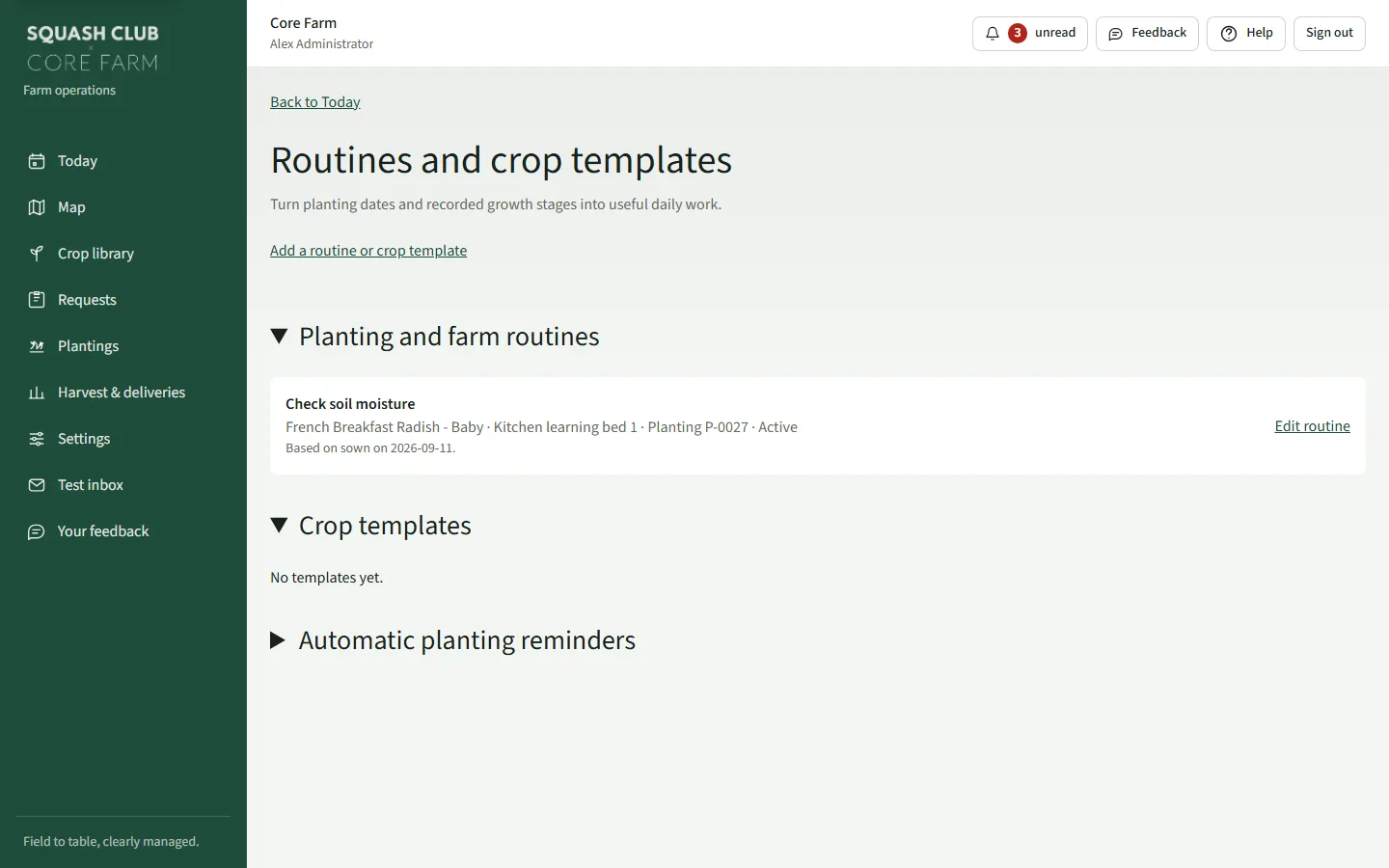
Reviewed 2026-10-16. This is a guide to current behaviour; the app may change. Actions depend on your permissions.