Settings
Farm team: invite people and manage access
Use invitations and role permissions, with a retained history when someone leaves. For invitations, follow the written steps; video and screenshots may show an earlier flow.
Watch the walkthrough · 0:55
Invite and manage farm staff
Narrated demonstration. Use Play, pause or replay at your own pace. Use fullscreen for small details. The written steps below remain available.
Download video: Invite and manage farm staffRead the transcript
From Settings, open Manage farm team and check the farm name. Review each person's membership and roles; a login alone is not access to every business.
Enter the colleague's email and optional name, then choose the offered roles they need. Read the role explanation before granting wider access. The invitee uses the email link and chooses their own password.
Outstanding invitations show status and expiry. Review a failed email before duplicating an invite, and withdraw an unwanted one. Open a person to change allowed roles, save and wait for confirmation.
Suspend access when work should stop, confirming the displayed name. Restore a suspension when appropriate. Permanent removal retains history but needs a fresh invitation to rejoin; safeguards protect your own and the last administrator's access.
Jump to a section
Invite a farm team member
- Open Settings, People and access, then Manage farm team when you have staff-management access.
- Choose Invite, enter the person's email and optional name, and select the farm roles you are allowed to grant.
- Send the invitation. A new account follows its email, chooses Continue to review invitation, then confirms its own password and joins. An existing account signs in normally and joins without changing its password.
Example
Invite a grower with the role needed to view crops and record field work. Give delivery or library-management roles only when that person needs those jobs.
Invitation checks
Administrators invite staff; they do not choose staff passwords. An invitation must be accepted by the correct verified email before membership is active.
Outstanding invitations show expiry and a separate email state. Use Resend email when available for the same waiting invitation. It has a wait of at least a minute, longer after an uncertain result, and a maximum of five email requests per invitation.
Email queued or Email provider accepted is not inbox delivery. Check the person's inbox and spam before requesting another. For an uncertain result, review the saved status first; a lost response does not prove nothing was sent.
Withdraw an unwanted invitation. Expired invitations are listed separately; use the invitation form to issue a fresh one with appropriate roles. The expired record stays in history, and its old link does not become valid again.
Farm roles do not turn a restaurant account into a farm user. Granting higher administrative roles is limited by the inviting person's authority.
Review or change a person's roles
- Choose Manage beside the person and read their current status and role descriptions.
- Select the roles you are authorised to change, then save.
- Ask the person to check the jobs they need with their own account.
Least access that supports the job
Role descriptions explain what the person can view or change. Controls can be read-only for roles above your own authority.
A new role is a saved access change, rather than simply a checkbox on the page. Concurrent changes require reviewing the latest membership.
Last-administrator protections and authority checks can refuse a change that would leave the system without appropriate management.
Suspend, restore or remove access
- For an active person who should stop working in the app, choose Suspend and confirm their exact name.
- For a suspended person, Restore reinstates their retained roles when appropriate.
- If they should permanently leave, use Remove permanently from the suspended membership and confirm the name.
Example
Suspend seasonal staff when their work ends, then restore them for the next season if appropriate. Their earlier crop and task actions stay attributed to them.
History and safeguards
Suspension removes access while preserving the membership's roles and history. Permanent removal retains attribution but does not have the ordinary restore control; a later return needs a fresh invitation.
You cannot suspend or remove yourself through this flow. The app also protects the last system administrator and restricts changes to people beyond your authority.
Record the optional administrative reason when it helps explain the decision. If a needed control is unavailable, ask the appropriate administrator instead of sharing an account.
See the screen
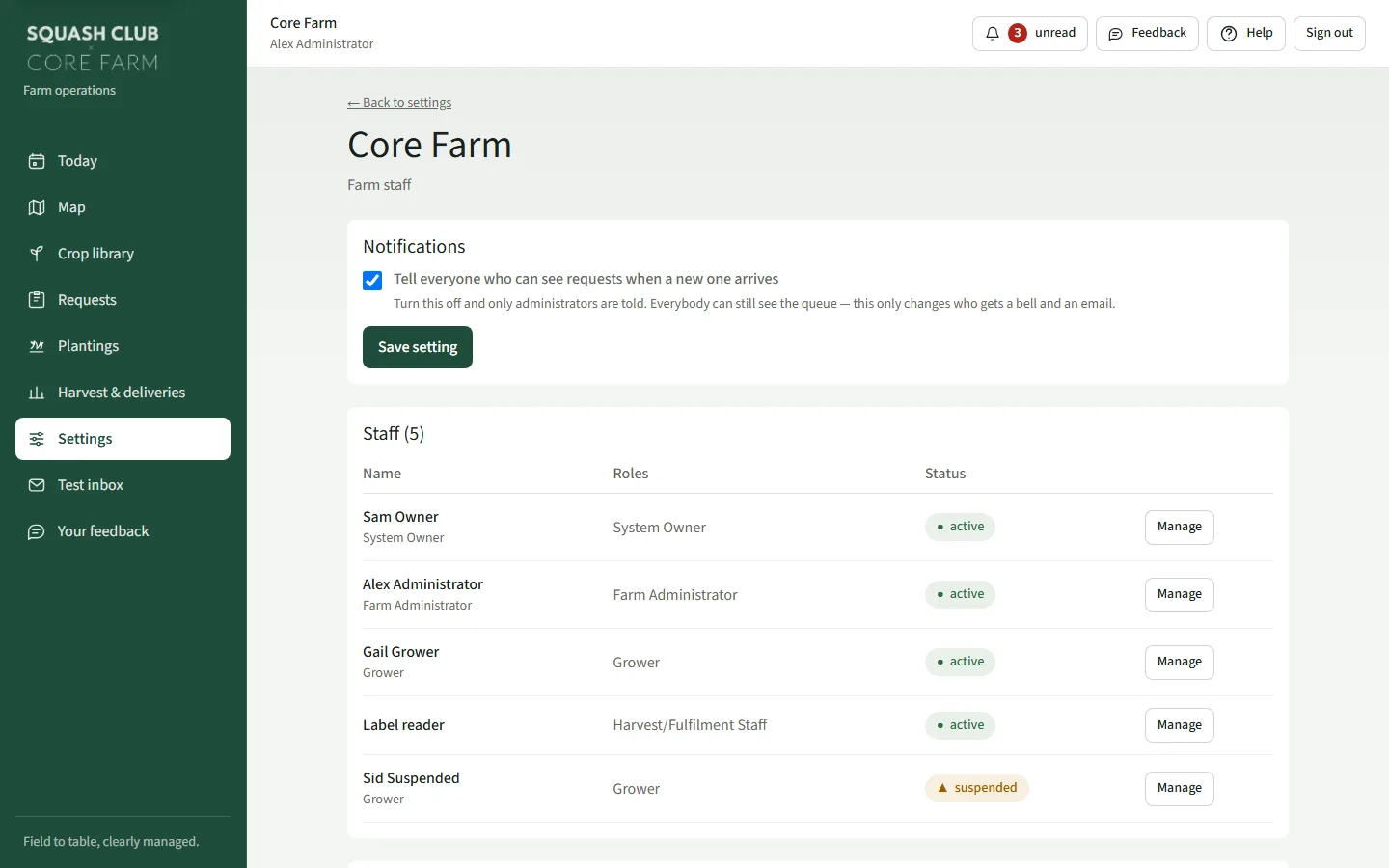
Reviewed 2026-10-16. This is a guide to current behaviour; the app may change. Actions depend on your permissions.