Daily work
Today: choose the next farm job
See today's work, the growing programme, the next delivery and local weather.
Watch the walkthrough · 0:56
Choose the next farm job
Narrated demonstration. Use Play, pause or replay at your own pace. Use fullscreen for small details. The written steps below remain available.
Download video: Choose the next farm jobRead the transcript
Today brings farm work into one place. Use My tasks for your jobs or Team tasks for the wider list. Due now includes overdue work, so check it first.
Open Upcoming to prepare ahead and Completed to review who finished a job and when. Planning decisions links requests and agreed crops that still need growing space.
This week separates the agreed amount, what was sent and what remains. Next delivery shows a preparation or shipment; a planned date is not proof the produce has left.
Open Weather and choose a day to review rain, temperature and wind. Make suitable work changes yourself; forecasts do not automatically cancel or reschedule tasks.
For a new farm, review its details, create a measured bed and check the crop library before planning. Missing controls can mean missing permission, so ask the administrator when needed.
Jump to a section
Start with what needs doing
- Open Today. Use My tasks for your work, or Team tasks to see the wider list.
- Work through Due now. Open the crop or request when the job needs a field record or a decision.
- Open Upcoming to prepare ahead, or Completed to check who finished a job and when.
Example
The sowing reminder points to a planting. Record Sown there after the work, so the crop timeline and its automatic reminders both reflect what happened.
What appears in your account
Cards depend on your farm permissions. Missing access is different from having no work; ask a farm administrator if you need a job that is unavailable.
Due now includes overdue work. Longer lists are folded to keep the first screen short. My tasks also includes unassigned routine work, but completing it may need a manager or an assigned person.
Planning decisions highlights requests waiting for the farm and agreed crops that still need growing space. Capacity and upcoming growing work are available in folded sections.
Use the daily work email
When email is enabled, the scheduled check starts from 07:00 in the farm's timezone. It can send one daily summary to an eligible person with due or overdue work; it is not a separate email for every task.
Assigned tasks and routines notify the eligible assignee. Unassigned routine work notifies eligible farm administrators or system owners with task-management access.
Choose Open Today in the email and review the current list. Completed, paused, reassigned or rescheduled work can change before you open it. The email does not complete the job, and scheduling or delivery delays are possible.
Example
An overdue tunnel check and today's watering job can lead to one morning email. Open Today to see which jobs still need doing; do not use the email as a fixed packing or task list.
Read This week and the next delivery
This week separates the agreed amount, what has been sent and what remains in the current agreement period. Growing progress and estimated harvest help explain where that amount will come from.
Next delivery shows a published preparation or shipment. A planned delivery date and an estimated harvest are useful plans, rather than proof that produce has been sent.
Example
An agreement for 10 bunches each week shows 4 sent and 6 remaining for its current week. A delivery scheduled for Friday is still preparation until the farm records it as sent or collected.
Use the forecast as guidance
- Open Weather and choose a day to see its hourly forecast.
- Check rain, temperature, wind and the growing guidance before choosing suitable field work.
- Make any necessary task or planting changes yourself, recording the reason where requested.
Forecast limits
The forecast uses the farm site's location and identifies its provider. It can flag cold, heavy rain, strong wind or a promising dry working window.
Weather guidance does not automatically cancel, create or reschedule jobs. It is a forecast, rather than a reading from a farm sensor or a crop-specific guarantee.
If weather cannot load, your saved farm work remains available. Retry the forecast without assuming an empty forecast means safe conditions.
Set up a new farm
- Follow the first-time setup guide: review farm details, make a bed, check the crop library, then agree and plan a crop.
- Use exact bed dimensions and the crop's real spacing before saving a planting.
- If no farm site is available, ask the system owner to finish the organisation and site setup.
How setup progress works
The setup guide helps until the first planting is saved. Reviewing details or the library is guidance, rather than a checkbox proving every record is complete.
A library crop can be saved before all growing assumptions are known. The planning method you choose will explain which additional details it needs.
See the screen
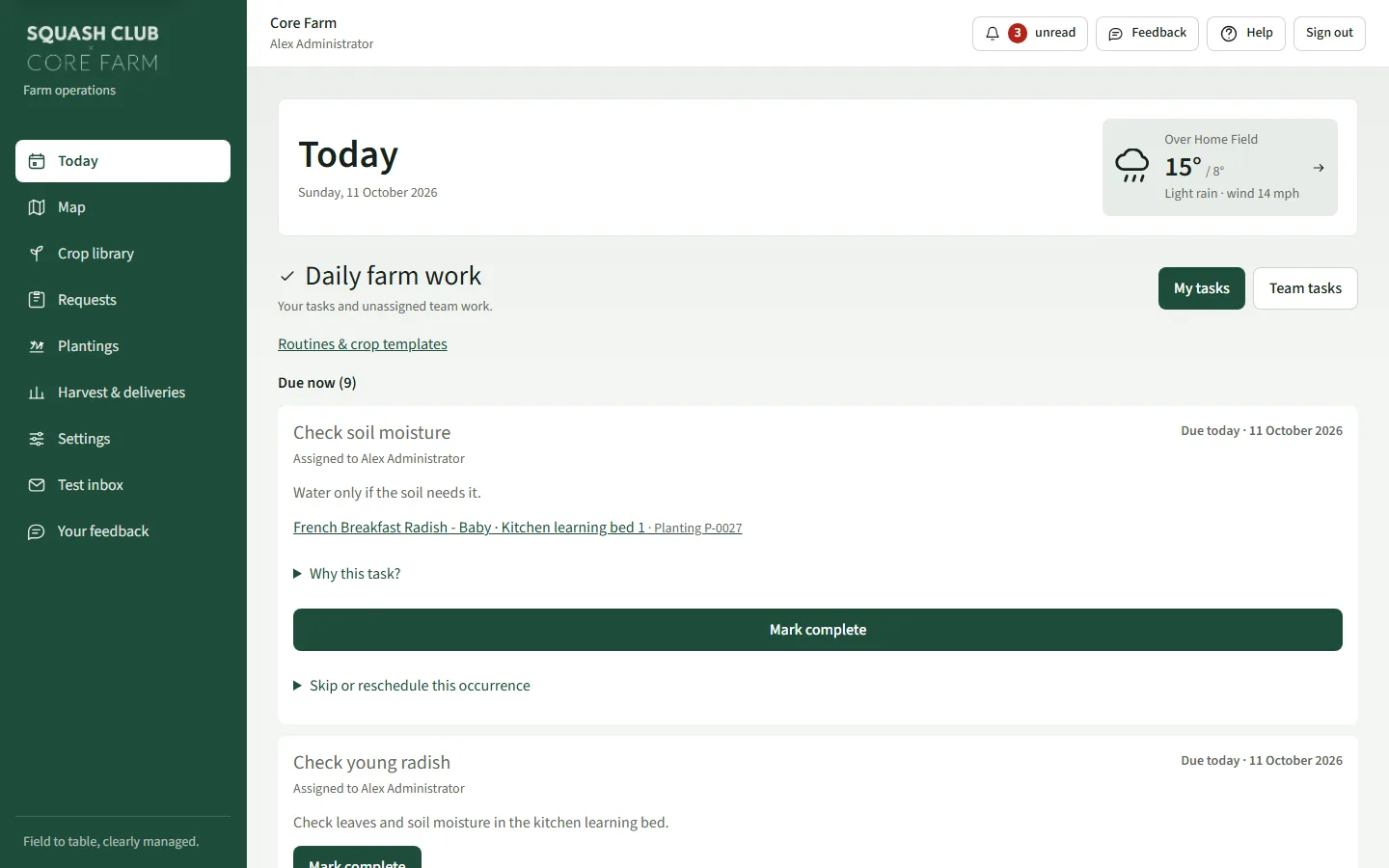
Reviewed 2026-10-16. This is a guide to current behaviour; the app may change. Actions depend on your permissions.