Harvest & delivery
Harvest: record usable stock and manage its condition
Turn measured harvest into available stock, with clear reservations, holds and corrections.
Watch the walkthrough · 0:52
Record and manage usable stock
Narrated demonstration. Use Play, pause or replay at your own pace. Use fullscreen for small details. The written steps below remain available.
Download video: Record and manage usable stockRead the transcript
Harvest stock starts with measured usable produce. Open Harvest, choose the eligible planting and supported unit, then enter the actual amount and harvest date.
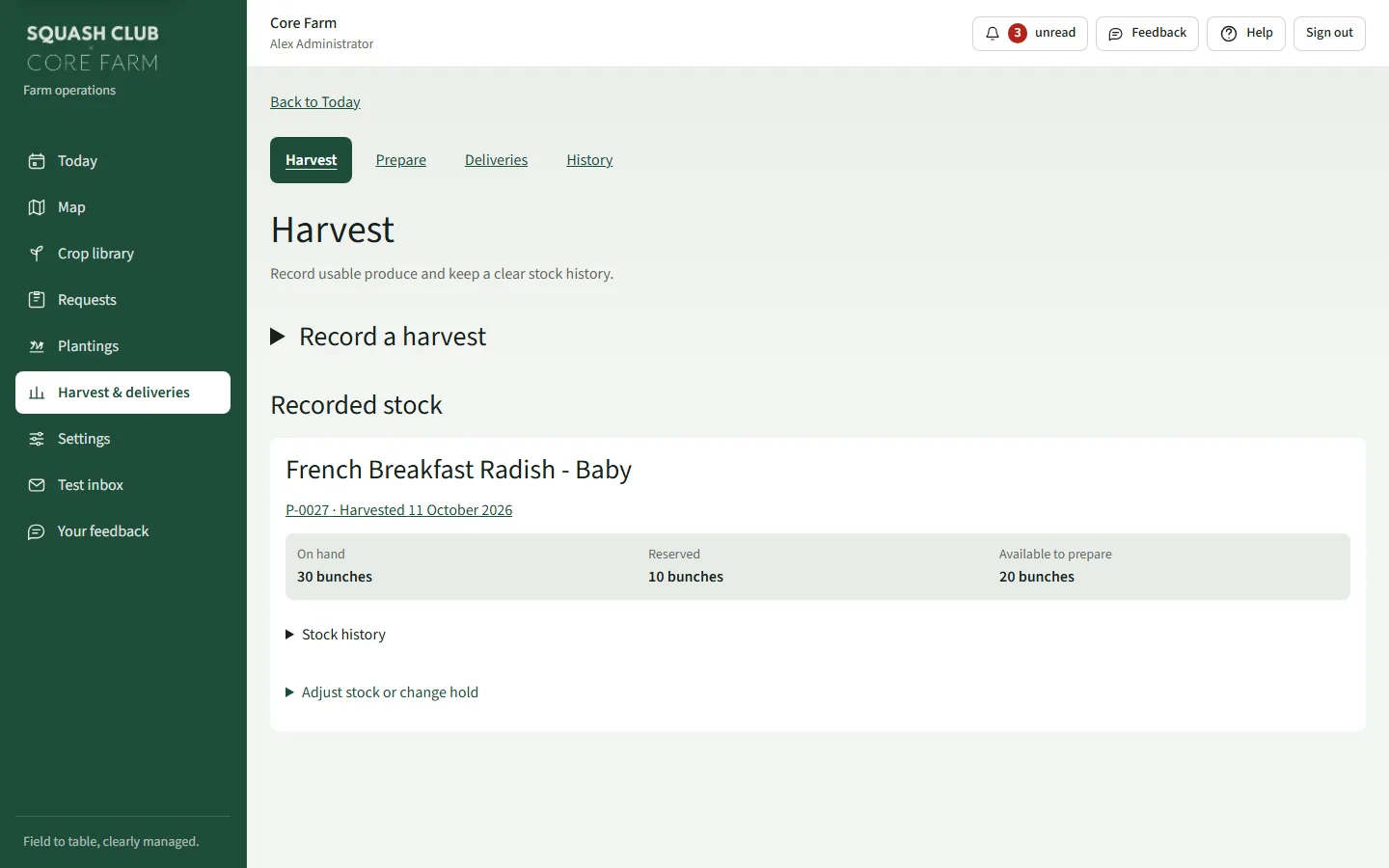
After saving, check the batch. On hand is its balance, Reserved is held for active preparations, and Available to prepare is usable stock left after those reservations. Forecasts and milestone ticks do not add stock.
Allowed stock actions can hold a batch, record waste, correct a count or add an inspected physical return. Enter the actual change and reason; the movement history keeps the original facts.
Missing, held, reserved and exhausted stock need different actions. Check the correct planting and unit, review affected preparations, then refresh. A short restaurant receipt does not automatically return stock to the farm.
Jump to a section
Record a measured harvest
- Open Harvest & deliveries and the Harvest tab with harvest-recording access.
- Choose the eligible planting, its supported unit, the usable quantity and actual harvest date.
- Save the batch and check its stock card before preparing a delivery.
Example
You cut 24 bunches, of which 2 are unusable. Record 22 usable bunches, rather than the forecast yield or the ungraded total.
A harvest record is a different fact
Only eligible crops and units can be recorded. An actual harvest date cannot be in the future.
The crop can stay open for later picks. Finish harvesting from the planting record only when that crop's harvest really has ended.
Expected yield, marking a task complete or recording Harvest started does not add usable stock.
Staff with stock-adjustment permission can record Opening stock for produce already harvested and still on hand, with a reason. Do not include produce already sent or record the same batch again as a new harvest.
Understand on hand, reserved and available
On hand is the recorded balance. Reserved is promised to active delivery preparations. Available to prepare is the usable amount left after those reservations, or zero when the batch is held.
Stock belongs to its planting, batch and unit. Another crop's stock, or a different unit, cannot silently satisfy this planting's shipment.
Example
A batch has 20 heads on hand and 8 reserved. It offers 12 to a new preparation. Holding the batch stops further use while its condition is checked.
Hold stock or correct the count
- Open the batch's stock actions with adjustment permission.
- Hold or release the batch with a reason, or choose waste/spoilage, count correction or an inspected return.
- Enter the actual change and reason, then check the new balance and movement history.
Correct the right record
Waste reduces stock. A count correction can increase or reduce it. An inspected return adds produce that is physically back and usable.
An adjustment cannot ignore active reservations or make an invalid balance. Review the affected preparations when a requested reduction is refused.
A lower restaurant receipt or a shipment correction does not by itself prove that produce returned to the farm. Record an inspected physical return separately.
Changes append to the history with a reason, rather than rewriting the original harvest amount. A stale balance needs a fresh review before retrying.
Check shortages before preparing produce
- On Harvest, open Stock to check. Read the crop, unit, available amount, needed amount and gap, or the instruction to review its delivery plan.
- Compare the due or overdue delivery plan with real measured stock. Review holds, reservations, the agreement period and any missing harvest before changing quantities.
- If useful and you have stock-adjustment access, open Optional stock minimums. Choose a farm crop and unit under Add or restore a minimum, enter your own positive amount and choose Save minimum.
- To turn off a saved optional minimum, clear its value and save. This leaves planned-delivery checks active. If another person changed it, reload and review their saved value before editing again.
Example
A due delivery needs 10 heads and the planting has 6 usable, unreserved heads, so its gap is 4. A separate 20-bunch herb minimum is optional; choose an amount that suits your farm rather than copying this example.
What an alert proves
Delivery checks work without a minimum. They use measured usable stock in the matching planting and unit, account for holds and reservations, and can flag work before its first harvest. Estimated yield and another crop's stock do not fill the gap.
The scheduled service rechecks stock in bounded batches on roughly five-minute cycles. A busy queue or service delay can take longer; the page shows the latest saved check, not a live stock guarantee. One continuing shortage does not send an email on every check. A resolved condition can alert again if it returns.
Notices go to currently authorised staff who can view harvest and adjust stock or manage dispatch. An optional minimum is for its exact crop and unit; the app does not invent a heads-to-kilograms conversion.
Keep an unfinished minimum form open after a refused or uncertain save. Check the saved value before repeating it. No stock count, harvest batch or delivery is created just by saving an alert minimum.
See the screen
Reviewed 2026-10-16. This is a guide to current behaviour; the app may change. Actions depend on your permissions.