Getting started
Sign in, join an invitation and switch accounts
Use the right entrance and keep farm and restaurant testing separate. For invitations, follow the written steps; video and screenshots may show an earlier flow.
Watch the walkthrough · 0:39
Sign in and join your team
Narrated demonstration. Use Play, pause or replay at your own pace. Use fullscreen for small details. The written steps below remain available.
Download video: Sign in and join your teamRead the transcript
Sign in with the account invited to your farm or restaurant. Choose the matching entrance, then enter your own email and password.
New team members join through their invitation email. Check the business and offered roles, then choose your own password. Administrators do not set it for you.
Save unfinished work before signing out. To use farm and kitchen accounts together, use separate browser profiles or a private window; ordinary tabs share a login.
A protected link returns you to the job after signing in. If access is refused, check the account and ask the relevant administrator. Expired invitations need a fresh invitation.
Jump to a section
Sign in
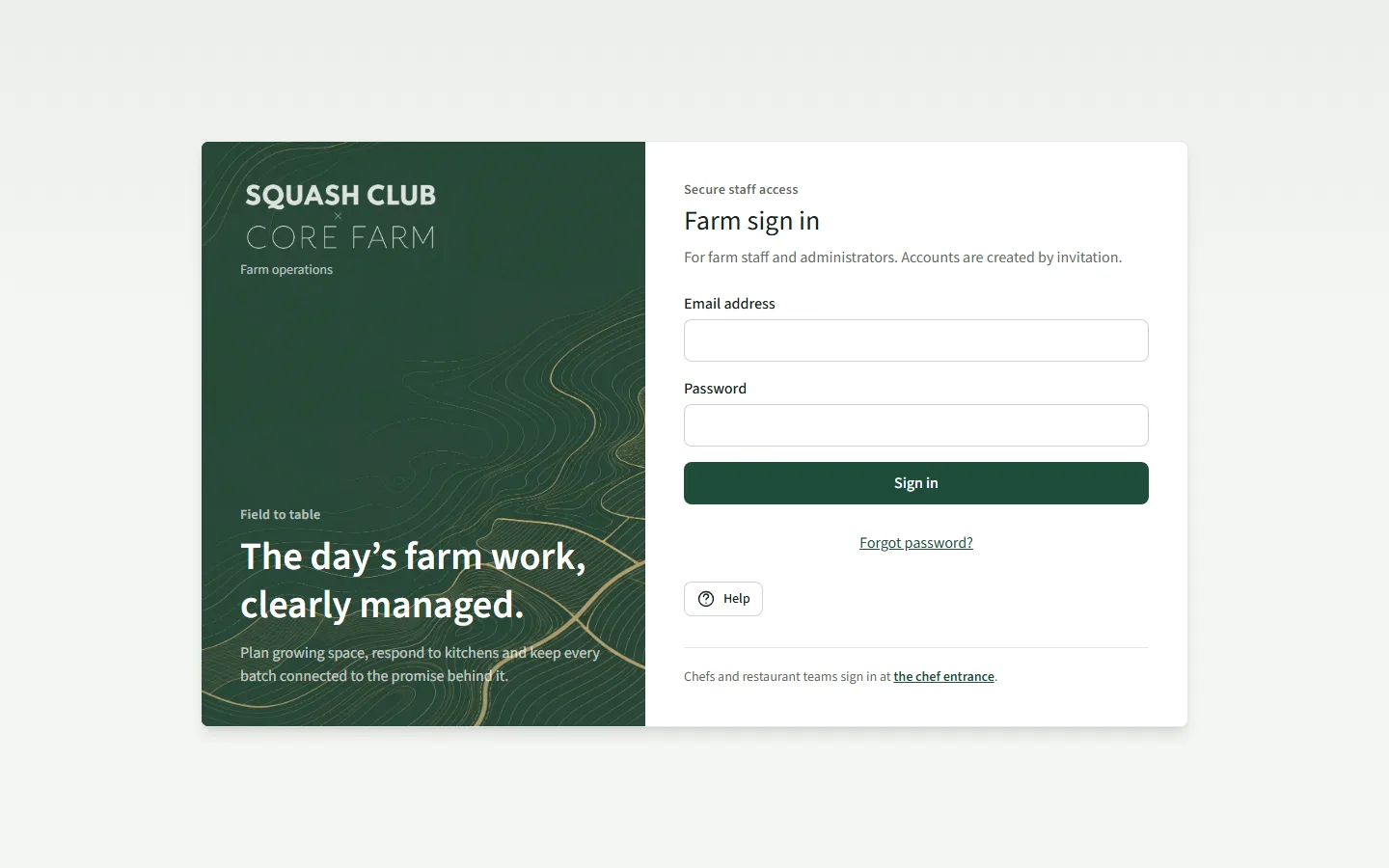
- Open Farm sign in for farm work, or Restaurant sign in for kitchen work.
- Enter your email and password, then choose Sign in. Password managers can fill these fields.
- If you followed a protected link, sign in to return to that job. A bed QR link also returns you to its current location.
Example
A worker scans a bed before signing in. After signing in as farm staff, the app opens the bed or its current crop.
Join from an invitation
- Open the newest invitation email sent to your address. If Review your invitation appears, choose Continue to review invitation; opening the email page alone does not join the team.
- Check the named farm or restaurant and the roles shown. If several invitations are waiting, choose the intended business.
- For a new account, choose a password of at least eight characters, enter it again and choose Join for the named business. The administrator does not choose or know your password.
- If you already have an account, sign in normally with that same email and review the invitation. Choose Join without replacing your existing password.
Example
A newly invited kitchen colleague checks the restaurant name, sets their own password and joins with the offered restaurant role.
If the invitation does not work
Invitation links expire and their verification can be used only once. Joining still needs your explicit confirmation. If no invitation is waiting, it may already have been accepted, withdrawn or expired.
Ask the inviter to check the address and invitation status. They can resend an outstanding invitation when its wait allows, or issue a fresh one after expiry. Do not forward another person's invitation.
If joining cannot be confirmed after setting a password, try normal sign-in with that password and review your invitations before starting again. Joining the same invitation again does not create another membership.
If you verified your invitation but never finished choosing a password, choose Set or reset your password under Haven’t set a password yet? on the invitation sign-in screen. Use the reset email privately to choose your password, then review and join the waiting invitation. If Your account has no access appears, choose Review invitations. Setting a password alone does not join a team.
Use Forgot password on either sign-in page to recover an existing account. Self-service registration is not available; new team members still join by invitation.
Forgot your password?
- Choose Forgot password on the farm or restaurant sign-in page.
- Enter the email you use for the app and choose Send reset link. The confirmation does not reveal whether an account exists.
- Open the newest reset email, choose a new password of at least 8 characters and enter it again to confirm.
- Choose Save new password. When the new sign-in is confirmed, the app opens your usual workspace automatically.
- If you see Your password has changed instead, the save is complete. Use your new password at your usual farm or restaurant entrance.
Example
A kitchen colleague resets a passphrase on a phone and continues into the restaurant when automatic sign-in is available. Their team access stays the same.
If the email or link does not work
Check spam and the address you entered. Open the newest reset email. Gmail may hide repeated content behind …; tap it to expand. The request confirmation also has Can’t see the reset link? help.
Wait a minute before another request. Links expire and can only be redeemed once; request a new one if it is no longer valid.
Opening an email link does not consume it. If saving cannot be confirmed, try signing in with the new password before starting another reset. Your entered password remains in the form after a refused save.
Farm administrators, system owners and accounts needing extra security checks use normal sign-in after saving. If automatic sign-in cannot be confirmed, the changed-password confirmation still means the new password was saved; do not submit another change just to sign in.
A password reset does not create an account, accept an invitation, change permissions or remove multi-factor authentication. Ask the administrator for help if you no longer control the email address.
Switch between farm and restaurant
- Save unfinished work before switching accounts.
- Choose Sign out, then sign in at the other entrance with its account.
- For simultaneous testing, use separate browser profiles or a private window. Ordinary tabs in the same profile share one signed-in account.
Example
Keep the farmer in the main browser and the restaurant in a private window. Opening another ordinary tab does not create a separate login.
Understand an access message
Correct login details do not give every account farm, restaurant or owner access. You also need an active membership and the permission for the job.
A wrong-entrance message asks for the account appropriate to that page. 'Your account has no access' means there is no current active membership; contact the inviter or administrator.
See the screen
Reviewed 2026-10-16. This is a guide to current behaviour; the app may change. Actions depend on your permissions.