Restaurant
Create, send and answer grow requests
Build a private crop list, send it deliberately and agree the programme with the farm.
Watch the walkthrough · 0:57
Create a restaurant grow request
Narrated demonstration. Use Play, pause or replay at your own pace. Use fullscreen for small details. The written steps below remain available.
Download video: Create a restaurant grow requestRead the transcript
Tell the farm what your restaurant would like grown. Open Grow requests. Baby radish is just our example.
Start a new request. Give it a name your team recognises, such as Seasonal menu. Start a request saves a private draft.
Choose the crop you want from the options shown, then move to Amount and timing.
Enter the amount you need and choose a unit offered for your crop. We're using ten bunches as an example.
Choose your first needed date and how often you need it: once, weekly, fortnightly or monthly. Repeats need an end date. Set the flexibility to suit your menu.
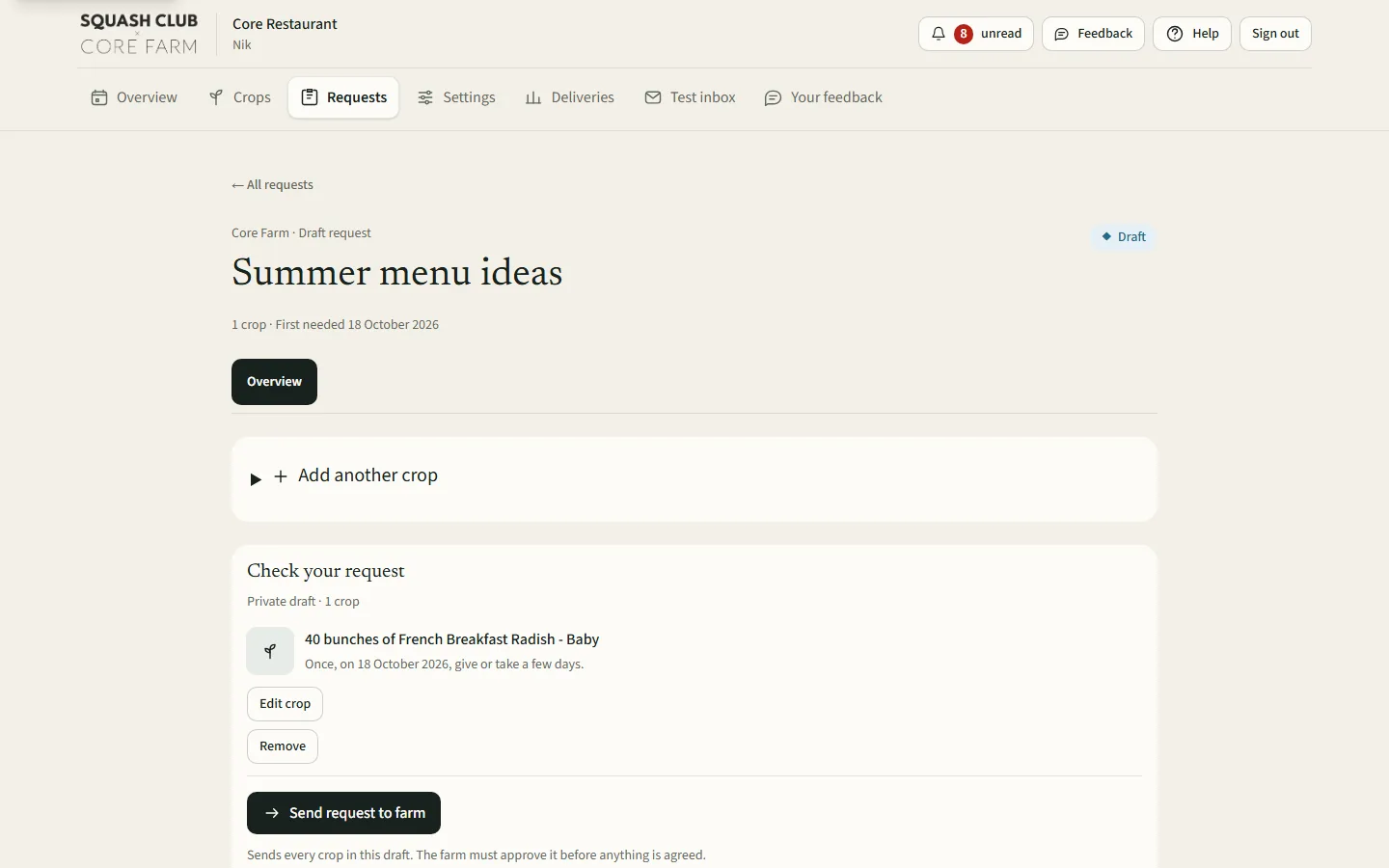
Check your crop, amount and dates. Use Edit amount and timing to change anything.
Add crop saves it privately. Add more crops if needed. Nothing is sent yet.
When you're ready, Send request to farm. Look for the sent confirmation. The farm reviews your choices before anything is agreed.
Jump to a section
Start a private draft
- Open Grow requests and expand Start a new request, or begin from a crop's Details page.
- Name the job so your team recognises it, such as 'June tasting menu' or 'Weekly salads'. Choose Start a request.
- In Add your first crop, choose the product, then move to Amount & timing. Enter a positive amount, unit, first needed date, frequency and date flexibility.
- For repeating supply, choose an Until date. Add an optional line note if the farm needs size or preparation guidance.
- Check the crop line, then choose Add crop. Repeat for other crops.
Example
For weekly salads, add 10 lettuce heads every week from 1 June until 29 June, with 'Anywhere in that week' flexibility. The amount is 10 per weekly occurrence.
Suggest a different unit
- Use a listed ordering unit when it matches what you need.
- Otherwise choose Other and type the format or unit you propose. Give the amount in that suggested unit and a short clarifying note if needed.
- Add the line and send it normally. The line remains marked Suggested unit · needs farm review until the farm resolves it.
Example
Ask for 4 small trays rather than heads. The farm must review which published product, supported unit and amount represent those trays; the app does not assume a tray equals a fixed number of plants.
What the farm must resolve
The farm selects a published product of the same variety, a supported unit and an explicitly reviewed quantity, with a reason you can read. Original requested details remain recorded.
Unresolved units cannot be accepted or planned. This does not automatically create a new crop-library record or unit; the farm administrator decides whether the library needs a separate update.
Check, edit and send
- In Check your request, review all saved crop lines. Use Edit to change a line, Save crop to keep it, or Discard changes to leave it as saved.
- Use Remove for a line you no longer want. Finish or clear any unfinished crop addition or edit before sending.
- Open Add a note if the whole request needs a message, then choose Send request to farm. This sends every saved line.
- Wait for the sent confirmation and request reference. The farm can review it now; it is not agreed yet.
Example
Add lettuce and basil privately, edit basil from 6 to 8 bunches, then send once. Add crop is not the send action.
After sending
Sent lines become a record rather than an editable restaurant draft. Ask for changes through Conversation; accepted agreement revisions are recorded by the farm with a reason.
A sending receipt is recorded for the restaurant sender. Email delivery depends on the configured mail service; read the private test inbox's status where available.
Before sending, a colleague's newer draft edit can cause a stale-save refusal. Compare the latest record with your kept entry rather than overwriting it.
Answer the farm
- Open a request under Needs your reply, or follow its notification.
- If the farm asked a question, open Conversation and send a reply. Your restaurant reply is shared with the farm.
- For a farm-origin proposal, an authorised restaurant manager can choose Accept this proposal, review the optional note and confirm Yes, we will take it.
- To decline a proposal, choose Turn this proposal down, give the required reason and confirm. Use Not yet or Keep thinking to leave the decision open.
Example
The farm offers 8 bunches weekly instead of the hoped-for 10. A manager can accept the proposal or explain why a different amount or date would work.
Agreement is separate from ground planning
Accepting agrees the partnership programme. It does not sow plants, reserve a particular bed or guarantee an actual harvest date.
Someone without proposal-response permission can read and discuss the proposal but needs a restaurant manager to accept or decline it.
Find or withdraw a request
- Search the list by name, farm or reference. Use Show to filter All requests, Needs a reply, Going ahead, Drafts or Closed; Clear filters restores the full list.
- Open Overview for its current next step. Grow log appears for accepted work; Conversation appears after it is sent.
- To withdraw your own unaccepted request when permitted, choose Cancel this request, optionally explain, then confirm Yes, cancel it. Keep it leaves the request unchanged.
Example
Cancel a menu request that was never agreed, then start a new one if needed later. An accepted programme needs a discussion and recorded farm revision instead of this cancellation control.
Access and closing
Creating, responding and cancelling require the relevant restaurant permissions. You see requests for your own restaurant, not another kitchen or private farm drafts.
Cancelled and declined requests remain as history. There is no reopen control; use a new request if you want to begin again.
See the screen
Reviewed 2026-10-11. This is a guide to current behaviour; the app may change. Actions depend on your permissions.