Daily work
Tasks: assign, finish and check daily work
Make a one-off task and keep completion separate from the crop's field records.
Watch the walkthrough · 0:44
Assign and finish daily tasks
Narrated demonstration. Use Play, pause or replay at your own pace. Use fullscreen for small details. The written steps below remain available.
Download video: Assign and finish daily tasksRead the transcript
Use a one time task for a specific job. On Today, choose Add task, give it a useful title and add only the instructions the worker needs.
Choose an active team member and the due date that fits the work, then review before saving. Manual tasks need an assignee; repeating work belongs in a routine.
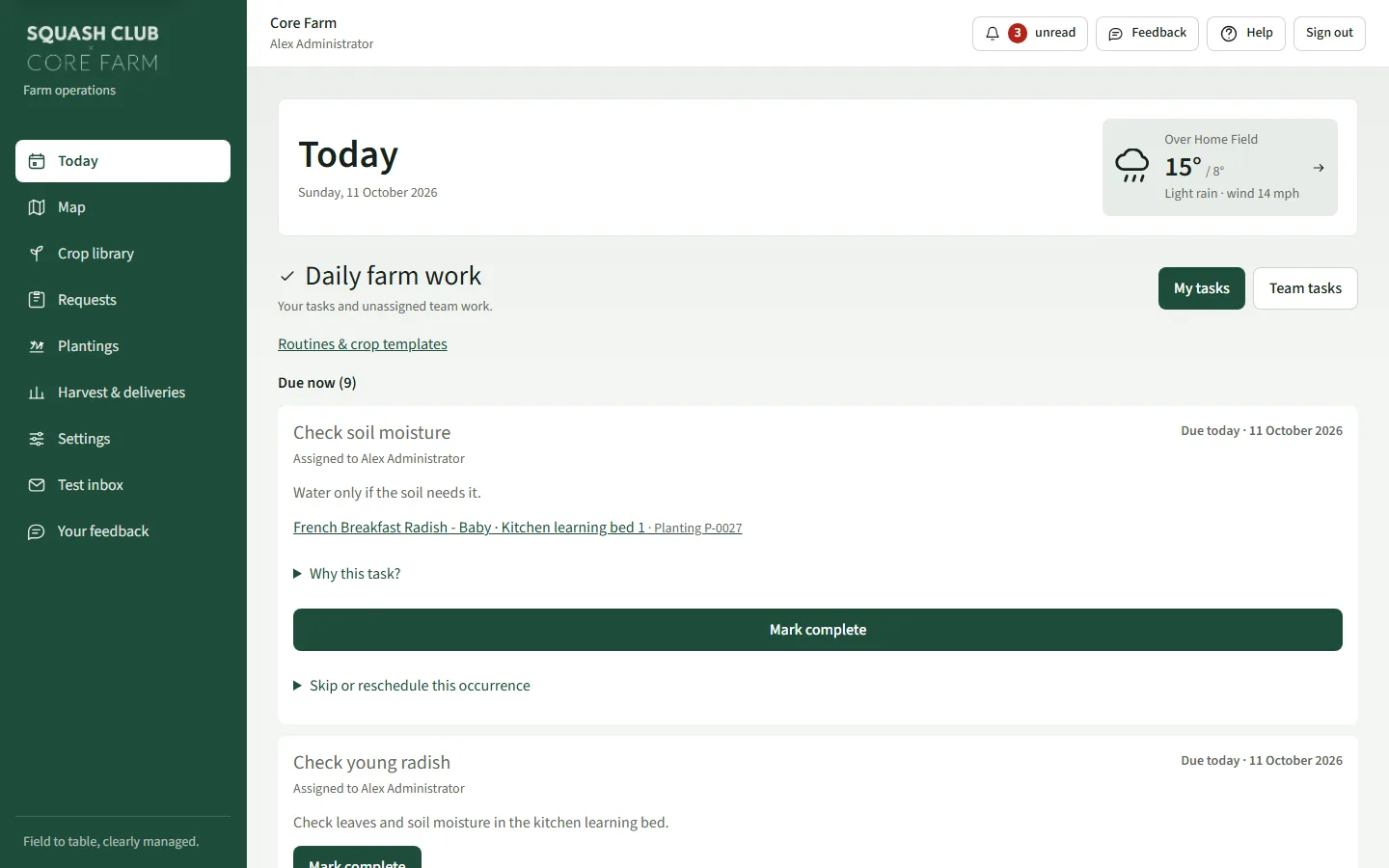
Find the job in My tasks or Team tasks, then mark it complete after the work is done. Wait for confirmation. Completed shows the person and time; Reopen corrects a mistake where offered.
A completed task does not publish a growing update, add harvest stock or send a delivery. Record those facts in their own workspaces. After an uncertain save, check history before repeating it.
Jump to a section
Add a one-off job
- On Today, choose Add task if you manage farm tasks.
- Give the job a short, clear title, choose an active team member and a due date.
- Add instructions only when the person needs them, then save.
Example
Create 'Check the tunnel irrigation' for a grower, due tomorrow. Put the valve location in Instructions so the title stays easy to scan.
Permissions and limits
Task managers can create tasks, edit open one-off tasks and manage team completion. Staff with completion permission can finish tasks assigned to them.
A manual task needs an assignee. Routine work can be unassigned team work, which a manager can complete or assign appropriately.
Use a routine for a repeating job. Completing a task does not automatically publish an update, record harvest stock or send a delivery.
Due and overdue assigned work can contribute to one daily email summary from 07:00 farm-local time when email is enabled. Use Today for the current work, including changes made after that day's email.
Finish a task or correct a mistake
- Find the job in My tasks or Team tasks and open its details if needed.
- Mark it complete after doing the work. Wait for the saved confirmation.
- Check Completed for the person and time. Use Reopen if it was completed by mistake and that control is available.
Example
Ticking 'Harvest lettuce' finishes the reminder. Record the actual harvested amount in Harvest before it can be used in a delivery.
When work is late or cannot be saved
Overdue work stays visible until it is dealt with. A task manager can edit an open one-off task; routine occurrences have separate reschedule and skip controls.
After a save error, keep the page open, read the message and retry when the connection returns. Check the list or history if the outcome was uncertain before submitting again.
Saved work and unfinished entries
The app protects supported unfinished entries after failed saves. It is not a general offline task queue, and a task is only complete after the server confirms it.
The current one-off task tools support completion and reopening, rather than deleting task history.
See the screen
Reviewed 2026-10-16. This is a guide to current behaviour; the app may change. Actions depend on your permissions.