Communication
Report a problem or suggest an improvement
Send a private report with useful steps and an optional picture.
Watch the walkthrough · 0:49
Give useful page feedback
Narrated demonstration. Use Play, pause or replay at your own pace. Use fullscreen for small details. The written steps below remain available.
Download video: Give useful page feedbackRead the transcript
Spot a problem or a useful improvement? Open Feedback on that page. Choose the feedback type and describe what happened in your own words.
Add what you did and what you expected. For example, explain which crop you searched for and which control was cut off; example wording is not required.
Include the screen or attach an accepted picture if helpful. Review the preview and description before sending; visible page text can still contain information you should remove.
Send when the report is ready and wait for its reference. Your feedback follows its review status. Reports are private to their author and allowed system owners.
After an uncertain send, check Your feedback before repeating it. Keep the page open while correcting the report; reloading or closing the browser can lose an unsent draft.
Jump to a section
Send feedback from the affected page
- While signed in, open the page with the problem and choose Feedback in its header.
- Choose A problem, An idea or Other feedback. Explain what happened. Open the optional section to add what you did and what you expected.
- If helpful, choose Include this screen or attach one JPEG/PNG screenshot or photo up to 3 MB. Review the preview and describe the picture.
- Choose Send feedback and wait for the received confirmation and reference. Use Your feedback to follow it later.
Example
Problem: 'The crop name is cut off on my phone.' Steps: 'Open Crops, search lettuce, open Details.' Expected: 'The full name should be readable.' Attach the cropped screen after checking it.
Who sees the report?
Feedback is private to its author in the current business and to authorised system owners. It is separate from the farm's restaurant conversation and from farm operational work.
The system owner receives an in-app notice and can receive a generic new-report email. Status changes can email the author a protected link, without including the report text or picture. An ordinary farm administrator does not automatically have the private owner feedback inbox.
Your feedback list shows your recent submitted reports and their New, In review or Resolved status. Open a report to read its text, picture and captured page details.
What is saved to help reproduce it?
Example
A desktop report can retain the selected delivery and page position, helping the owner reproduce the same view. Add the actual actions in words; a screenshot alone cannot explain the sequence.
Picture and technical context
Opening a report records limited context: app path, supported filters and section, screen size, scroll position, browser family, language, timezone, connection state and capture time. The server adds its running code version when known.
Automatic pictures capture the visible page and hide form entries and marked private regions. Review before sending: other visible page text may still contain information you do not want to disclose. Manually attached pictures are your responsibility to review and redact.
Canvas maps, embedded content or unsupported resources can prevent automatic capture. Attach a normal screenshot or send the text without a picture instead.
The report does not collect passwords, browser storage, console logs, network recordings or a copy of the full source code. A known release version lets an owner open the corresponding Git version; a local or unknown version cannot guarantee exact code reconstruction.
Keep or correct an unfinished report
- Close Feedback to keep its unfinished text and selected picture while that signed-in app session stays open.
- Return to the original page to create its automatic picture. If the report is about another page, start a new report deliberately.
- After a failed or uncertain send, check Your feedback before retrying the same report. Remove or replace an unreadable picture without losing the text.
Draft limits
The feedback draft is held in the current page session, not a permanent offline queue. Reloading, closing the browser or changing business can lose an unsent report.
A failed attempt may prepare a private draft on the server, but only a confirmed submission appears in the owner's inbox. Do not assume a failed screen means the report was never received.
See the screen
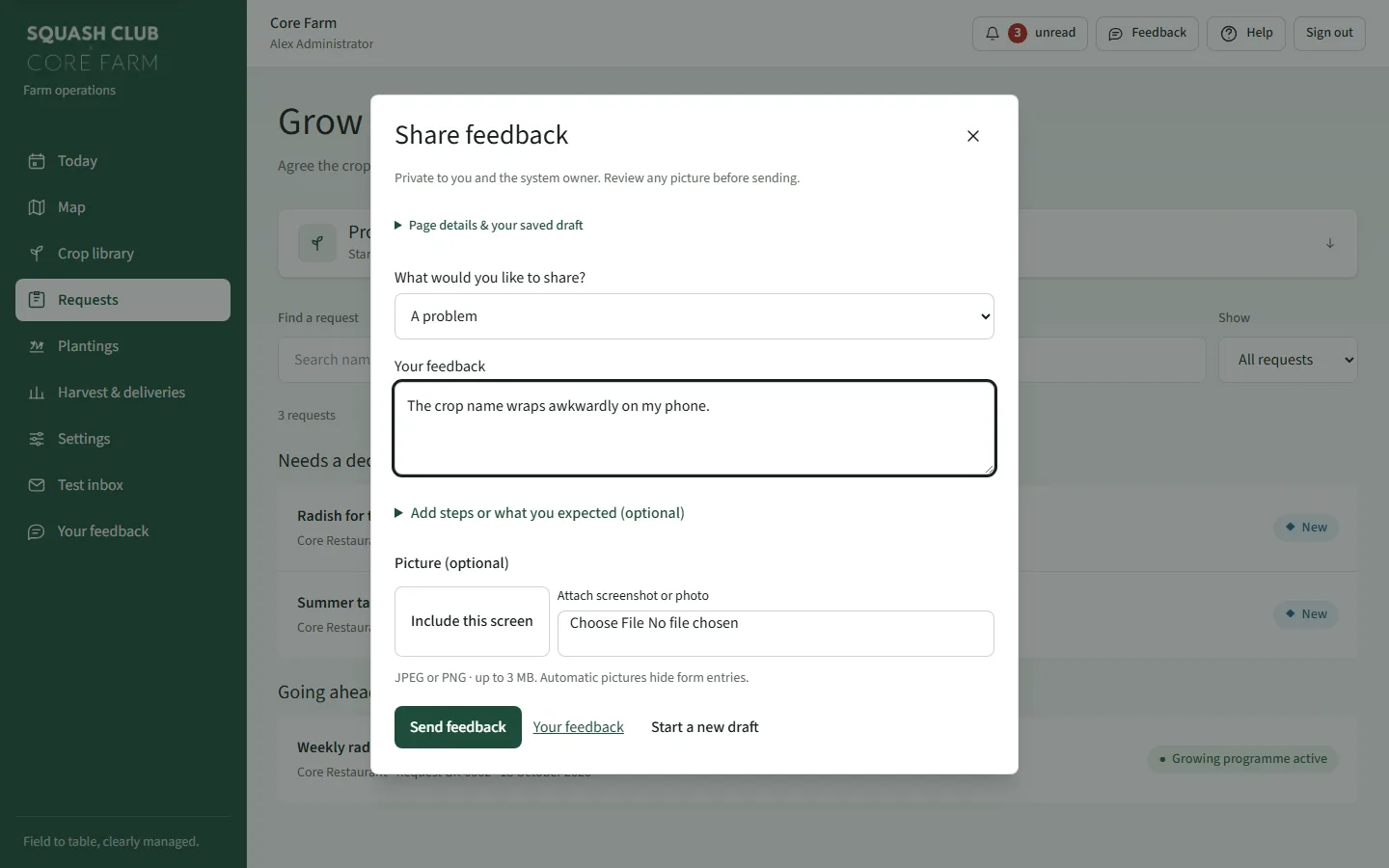
Reviewed 2026-10-16. This is a guide to current behaviour; the app may change. Actions depend on your permissions.