Harvest & delivery
Picking list: gather and pack the day's produce
Use one grouped working list, then save actual packing in each delivery.
Watch the walkthrough · 0:45
Use the picking and packing list
Narrated demonstration. Use Play, pause or replay at your own pace. Use fullscreen for small details. The written steps below remain available.
Download video: Use the picking and packing listRead the transcript
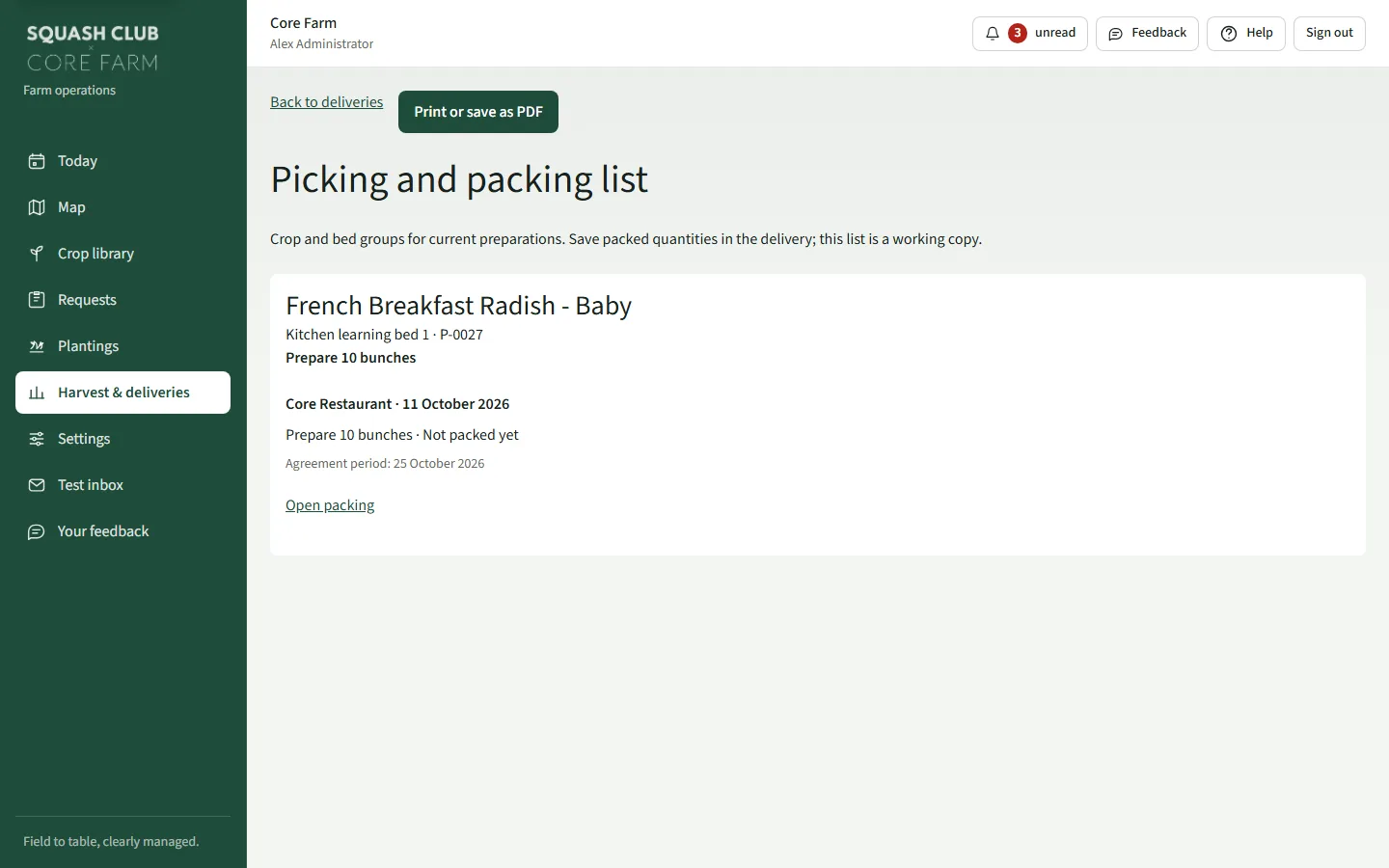
The Picking list groups Preparing and Ready work by crop, bed and planting. Check the restaurant allocation and date before gathering produce.
Use the group totals for organisation, while retaining each preparation and agreement period. Different units are not combined. Open the right preparation to record its actual packed amounts.
Print or save a working copy if useful, then reopen the current preparation before packing. A printed tick or downloaded file does not save quantities, and a colleague's changes can make the copy stale.
Save what was actually packed and wait for confirmation. Completing a Today task is separate from updating the delivery. Refresh the list when dates or amounts change.
Jump to a section
Gather the produce
- Open Picking list from the delivery workspace with the required picking or harvest access.
- Review the Preparing and Ready work grouped by crop, bed and planting.
- Check each restaurant allocation and date before gathering or packing.
- Open packing for the appropriate preparation and save what was actually packed.
Example
The list shows 6 heads for one restaurant and 4 for another from the same crop. Gather the 10-head total, keeping each delivery's allocation identifiable.
What the totals mean
Grouping helps repeated crop lines while preserving their individual restaurant, preparation and agreement-period details.
Totals only combine matching units. Planned and already-packed amounts are distinguishable; a printed list can become stale when colleagues change a preparation.
Drafts do not reserve stock or appear as active picking work. Finishing a task on Today is separate from saving a preparation's actual packed amounts.
Print or save a working copy
- Choose Print to use the browser's print or Save as PDF option.
- Use the copy for field organisation, then reopen the current preparation before recording packing.
- Print a fresh copy if dates or amounts change materially.
Paper marks do not update the app
The print view hides navigation to keep the list useful on paper. It is a working copy, rather than an issued delivery note.
Ticking a paper line, downloading a PDF or opening packing does not save actual quantities. Wait for the app's confirmation after saving packing.
See the screen
Reviewed 2026-10-11. This is a guide to current behaviour; the app may change. Actions depend on your permissions.