Map & planting
Farm map: see space and place beds
Use a date-aware visual map, exact bed sizes and a list when the map is inconvenient.
Watch the walkthrough · 0:57
See space and place beds
Narrated demonstration. Use Play, pause or replay at your own pace. Use fullscreen for small details. The written steps below remain available.
Download video: See space and place bedsRead the transcript
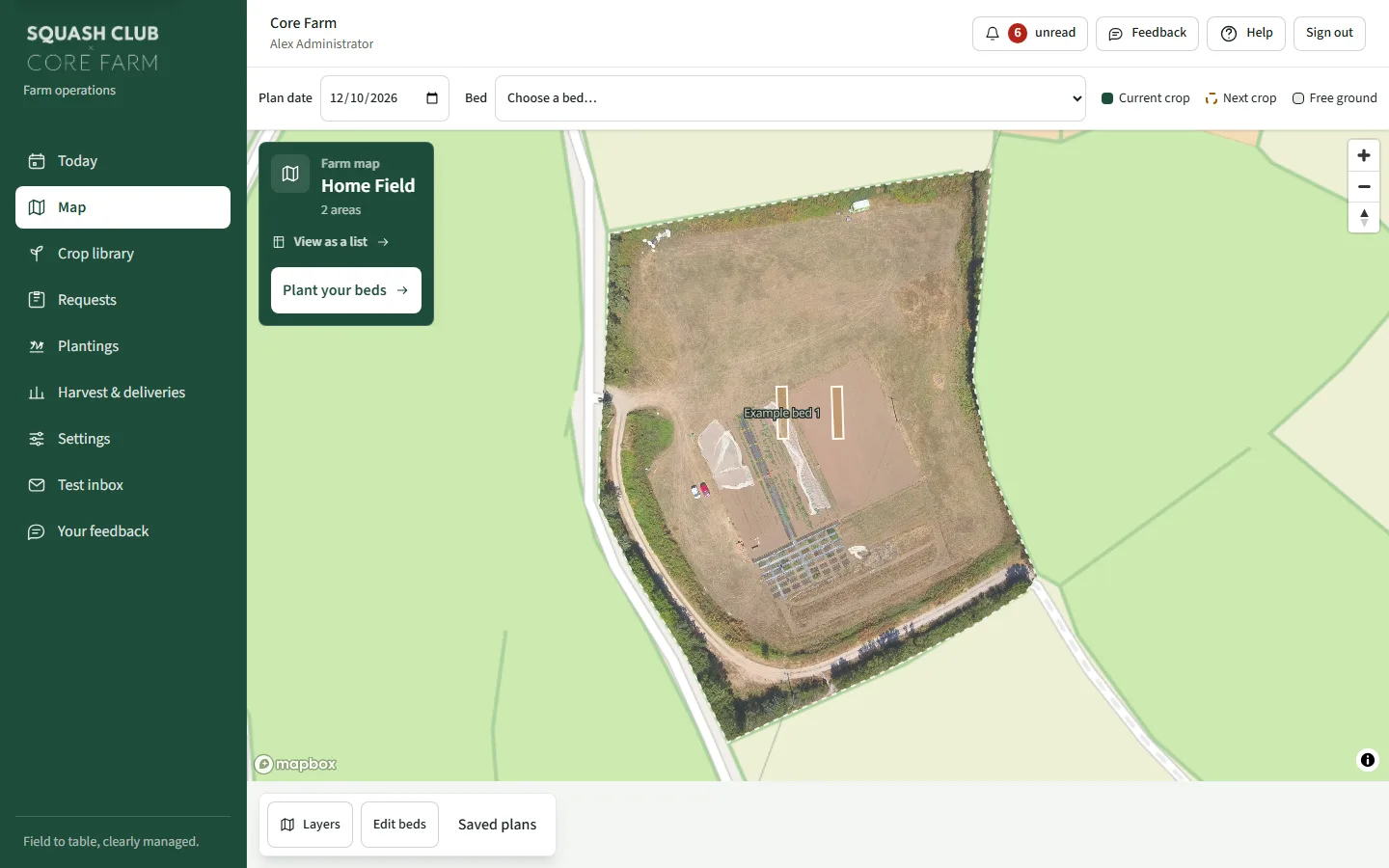
The farm map helps you see growing space. Choose the Plan date, then tap a bed or use the Bed list. Current crops, next crops and free ground have their own labels.
For a new bed, open Edit beds and Place a bed. Choose a saved bed type or enter your own name, width and length. Use measurements you know; aerial images are a reference.
Place the bed where it belongs. Its body moves it, corners resize it and the rotation control turns it. Exact controls remain available without dragging. Review before saving.
Use Draw for an irregular shape with at least three corners. Check field boundaries and other beds; crossing edges or overlaps can be refused. Undo or close an unfinished change when needed.
View as a list provides the same growing areas. Open a bed for its crops and history, or Plant your beds for a planting plan. Save only after checking the exact result.
Jump to a section
Find a bed and its crops
- Open Map and choose the Plan date you want to inspect.
- Tap a bed or choose it from the Bed list. Read its dimensions, crops and available ground.
- Use Plant your beds to make a planting plan, or View as a list for the same growing areas without the visual map.
Example
A bed can be occupied today and free next month. Move the Plan date before deciding where a future lettuce crop will fit.
Map access and layers
Viewing the farm map does not grant permission to change beds or plant crops. Those controls depend on your map-editing and planting permissions.
Current crop, next crop and free ground have labels as well as visual styles. Crop occupancy uses both its shape and its ground-use dates.
Use the layer controls to adjust the reference image and field information. Aerial imagery is a visual reference, rather than a survey measurement.
Place a bed with an exact size
- Choose Edit beds, then Place a bed.
- Choose a saved bed type, or enter a one-off name, type, width and length in metres.
- Tap where it belongs. Drag its body to move it, use a corner to resize and the rotation control to turn it.
- Check the exact measurements and save. A one-off bed can also be saved at the field centre without dragging.
Example
Save a 1.2 × 6 m raised-bed type, then place several copies. Each saved copy receives its own bed name; removing the saved type later leaves those beds intact.
Saved types and names
A bed type is a reusable definition, rather than an occupied crop area. Choose a different type or the one-off form when a bed has a different size.
Saved bed types can be removed from the library with confirmation. Beds already placed from that definition keep their recorded geometry.
One-off area names must be unique on the site. If a save fails, check whether the bed already exists before trying again with another name.
Draw an irregular bed or change the reference
- Choose Draw and mark at least three corners. Adjust the corners, then save the shape.
- Use Field edge to adjust the field outline, or Align photo when the farm has an editable reference image.
- Check the preview before saving. Use Reset, Clear or Close to abandon an unfinished change where provided.
When a shape cannot be saved
A bed must be a valid shape inside its field and must not overlap another bed. A field edit cannot leave existing beds outside it.
Moving, resizing and drawing are checked again when saved. A stale revision or a colleague's new bed can require you to refresh and review the geometry.
The separate map design demonstration is an isolated example. It does not reserve or save real farm ground.
See the screen
Reviewed 2026-10-12. This is a guide to current behaviour; the app may change. Actions depend on your permissions.