People and access
Invite colleagues and manage restaurant access
Give colleagues suitable roles, suspend access and keep membership history. For invitations, follow the written steps; video and screenshots may show an earlier flow.
Watch the walkthrough · 0:50
Invite your kitchen colleagues
Narrated demonstration. Use Play, pause or replay at your own pace. Use fullscreen for small details. The written steps below remain available.
Download video: Invite your kitchen colleaguesRead the transcript
Open Manage restaurant team from Settings and check the restaurant name. Each membership belongs to that business; restaurant roles do not grant farm access.
Enter the colleague's email and optional name, choose an offered role and read what it allows. Send when ready. The colleague accepts their own invitation and chooses their own password.
Check Outstanding invitations for expiry and status. Withdraw a wrong invitation before issuing a fresh one. Open an active person to review allowed roles, save and wait for confirmation.
Suspend a colleague's access with name confirmation when needed. Restore a suspension if appropriate. Permanent removal keeps past attribution but requires a new invitation to rejoin. Ask the right administrator if a safeguard refuses a change.
Jump to a section
Invite a restaurant colleague
- In restaurant Settings, choose Manage restaurant team. Check the restaurant name before making changes.
- In Invite a user to this restaurant, enter the colleague's email and optional name. Choose at least one offered role; open What these roles can do for the fuller description.
- Choose Send invitation. A new account opens its email, chooses Continue to review invitation, confirms a new password and joins the named restaurant. An existing account signs in normally and joins without changing its password.
- Check Outstanding invitations for its status and expiry. Withdraw an invitation sent to the wrong address.
Example
Invite a kitchen colleague with the offered restaurant-member role. Use the manager role only if they should administer the team or make manager-level decisions.
Expired links or failed email
Invitation expiry and email sending are separate states. Email queued or Email provider accepted does not prove arrival. Ask the colleague to check their inbox and spam; an existing account can also sign in to review its invitation.
Use Resend email on an outstanding invitation when available. Wait at least a minute between requests, or the longer wait after an uncertain result. Five email requests is the limit for one invitation; the app does not automatically retry an uncertain account email.
Withdraw a wrong invitation. Expired invitations stay in their separate history section; use the form for a fresh invitation with reviewed roles. Check the current record before repeating a send whose response was lost, and ask the system owner about persistent failure.
Only roles the administrator is allowed to grant are offered. Restaurant roles do not grant access to farm work.
Review a person's roles
- Open the colleague's record from the people list.
- Review their status and current roles. Select or clear the roles you are allowed to change, then choose Save roles.
- Wait for confirmation. If another administrator changed the record, reload and compare before applying the intended update.
Example
Promote an authorised colleague to the offered manager role when they take responsibility for requests and team administration.
Permission boundaries
Held roles that you cannot grant remain visible and read-only; saving does not silently remove them.
Your administration scope is this restaurant. System owners can administer wider accounts, but an ordinary restaurant manager cannot grant farm or system-owner authority.
Suspend, restore or remove access
- For an active colleague, open Suspend access and type their displayed name to confirm. Add an optional audited reason, then choose Suspend access.
- To reverse a suspension, open the suspended record and choose Restore access; the retained roles return.
- For a suspended colleague who has permanently left, type their name under Remove permanently and confirm removal.
Example
Suspend a seasonal worker when their placement ends. Restore them for a return placement, or remove the membership if the relationship has ended.
History and self-protection
Suspension removes current access while retaining the person and roles. Permanent removal is not undone from this screen; a new invitation can reattach the person's history.
You cannot suspend or remove your own membership from its screen. Role and last-administrator safeguards can also refuse an unsafe change.
See the screen
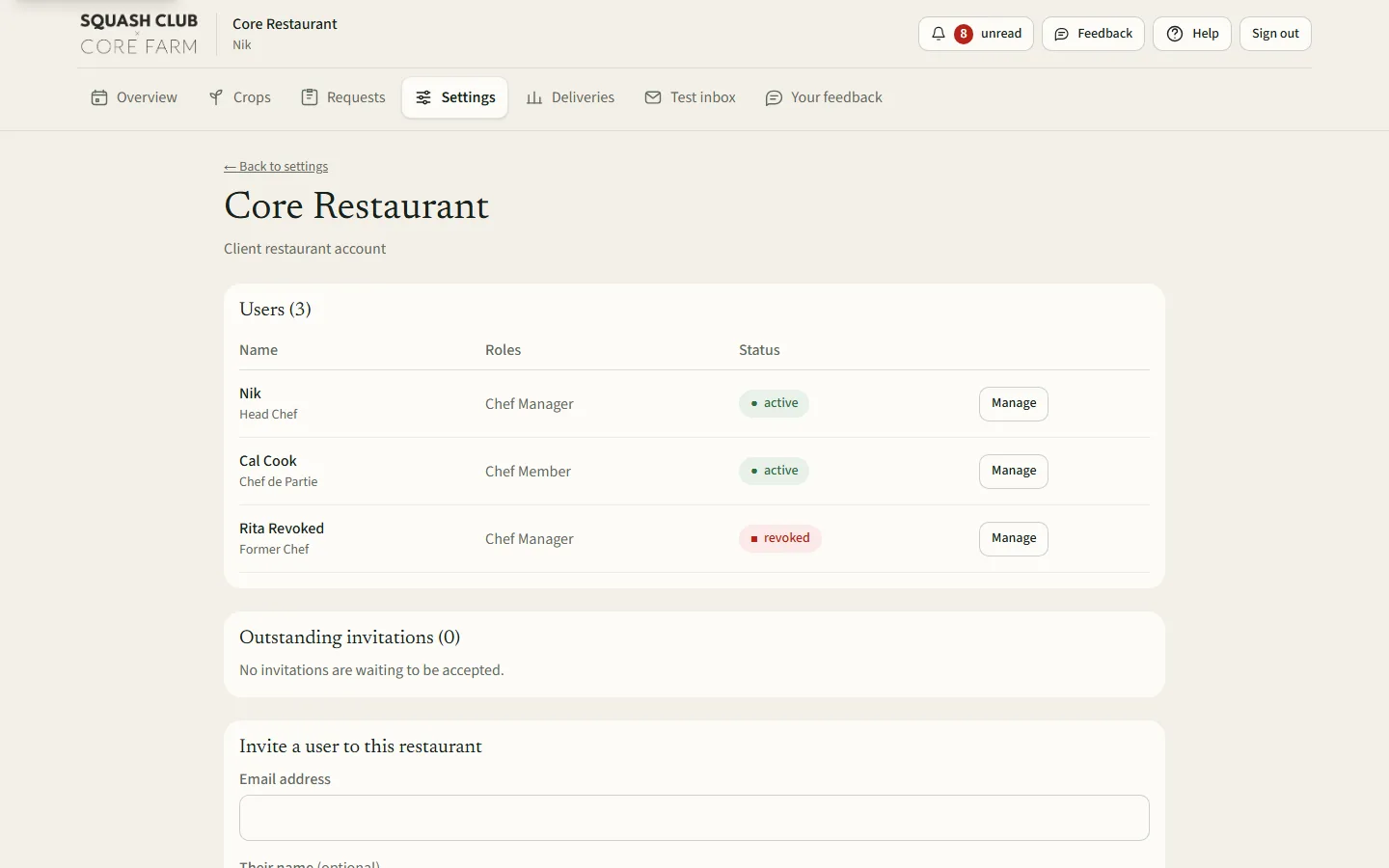
Reviewed 2026-10-16. This is a guide to current behaviour; the app may change. Actions depend on your permissions.