Crop library
Edit a crop: names, units, timing and growing details
Use the five-step editor and add the assumptions each planning method needs.
Watch the walkthrough · 1:02
Set up a crop's useful details
Narrated demonstration. Use Play, pause or replay at your own pace. Use fullscreen for small details. The written steps below remain available.
Download video: Set up a crop's useful detailsRead the transcript
Add or edit a crop through Crop name, What you sell, Timing and ordering, Growing details, then Review and save. Step buttons let you return to earlier choices.
Choose the plant, variety, category and supplied form. Set the request units you actually support, including a default. Required identity and ordering details are checked before saving.
Set known timing ranges for new sowings, or use the established-plant or unknown basis where appropriate. Seasonal windows and growing guidance are estimates and references, not measured stock.
Visual row layouts need both row and plant spacing. Automatic quantity planning also needs a matching cautious yield range and supplied unit. If those are unknown, do not invent them.
Review customer wording separately from private grower notes, then save and wait for confirmation. A basic crop can be saved before every planning assumption is known; the planner explains what else its chosen method needs.
Jump to a section
Work through the crop editor
- Choose Add crop or Edit crop with library-management access.
- In Crop name, choose or enter the plant and variety. In What you sell, define the category, edible part and supplied form.
- In Timing and ordering, set the timing basis and approved request units.
- In Growing details, add the profiles you know. Use Review and save to check readiness and save the record.
Example
For whole lettuce heads, choose the head product, allow 'heads' as a request unit and add the outdoor spacing used by the farm. Add expected yield only when that assumption is known.
Required versus optional
The step titles are navigation controls. Moving forward checks the required fields in earlier steps so an incomplete identity is not silently skipped.
A plant, variety and category are needed. A sow-to-harvest timing basis needs both ends of its day range. A requestable product needs approved request units and a default unit.
Scientific name, descriptions and many growing details are optional for a basic record. An added season, spacing or yield row must be complete enough to save; remove an unfinished row if it is not known yet.
Unknown or established-plant timing avoids pretending that a new sowing lead time exists. Shared plant and variety fields can affect other library products.
Set timing and seasonal guidance
- Choose whether timing runs from sowing or from an established plant, or is not yet known.
- Enter cautious minimum and maximum timing where applicable. Add germination timing, depth, temperature or succession guidance when known.
- Add seasonal sowing, transplanting or harvest windows for the appropriate environment and method.
How these fields are used
Known sow-to-harvest timing helps the planner work back from the restaurant's first-needed date. Germination timing can create a check reminder for a new planting.
Annual month-and-day windows can run across New Year. Customer harvest-season guidance is forecast information, rather than current harvest stock.
Depth, temperature and succession guidance are references. They do not read sensors or automatically create succession plantings.
Add spacing for visual placement
- Add a spacing profile for the environment and growing method you use.
- For row planting, enter both row spacing and plant spacing in metres.
- Check the side and end clearance before saving. Open the field's question mark when the units are unfamiliar.
Example
Thirty centimetres is 0.3 m. A patch with 0.3 m plant spacing needs room for the plants and its edge clearance, not just a dot on the boundary.
Different planting strategies
The visual crop-patch tools need a matching row-and-plant-spacing profile. Other recorded strategies, such as broadcast, trays or containers, are not automatically converted into row-patch layouts.
The planner applies at least a spacing-sized clearance at relevant edges, even when an entered margin is zero. This keeps generated plant spaces away from the boundary.
Changing spacing in the library does not rewrite older confirmed planting assumptions.
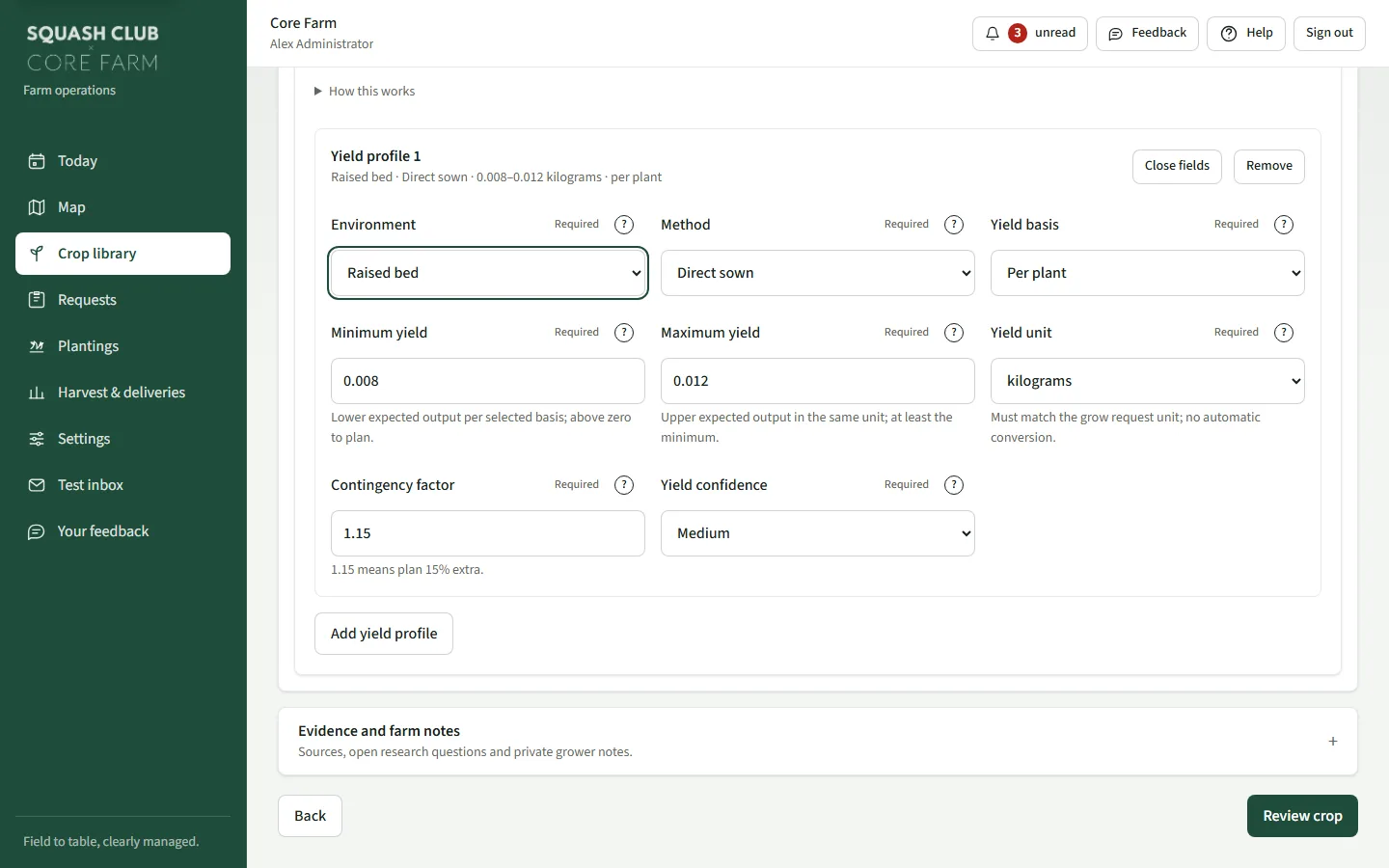
Add a yield range for automatic quantity planning
- Add expected output with its basis, such as per plant, per square metre or per row metre.
- Use a positive cautious minimum, a maximum at least as large, and the actual supplied unit.
- Set the contingency factor, check that environment and method match the spacing, then save.
Example
A minimum of one head per plant with a contingency factor of 1.2 gives a suggestion of 120 plants for 100 heads. A factor of 1.2 means 20% extra, rather than 1.2%.
When a yield profile is needed
Plan from yield estimate needs a valid matching profile in the agreement's unit. Per-plant, per-area and per-row ground estimates are supported; tray and container yields do not become automatic bed layouts.
If the crop has no matching yield, visual planting can use an explicitly confirmed farm estimate instead. Saving a basic crop does not require inventing a yield range.
The editor allows one yield profile for an environment-and-method combination. Review the existing profile rather than adding another for the same combination only to change units.
Confidence, conversion rules and path notes are references. The current planner does not execute arbitrary JSON conversion rules or infer that kilograms equal a particular number of plants.
Check visibility and recover a failed save
Check active status, requestability and customer wording separately from private grower notes. Experimental and confidence labels should describe the record honestly.
If another person changed the crop, review the latest version instead of overwriting it. After a validation or connection error, keep the unfinished editor open and correct the reported fields.
See the screen
Reviewed 2026-10-11. This is a guide to current behaviour; the app may change. Actions depend on your permissions.