Communication
Notifications and the test inbox
Read notices, compare outgoing emails and understand their sending status.
Watch the walkthrough · 0:41
Read notices and the test inbox
Narrated demonstration. Use Play, pause or replay at your own pace. Use fullscreen for small details. The written steps below remain available.
Download video: Read notices and the test inboxRead the transcript
Keep track of answers and progress through the bell in the header. Open it to see recent notices; opening the panel alone does not mark them read.
Follow a notice to the relevant request, update or delivery. Marking a notice read does not answer a question or complete the work.
Where enabled, Test inbox shows outgoing messages addressed to you. Open a message for its preview and status; an email preview is not proof of delivery or agreement.
An allowed farm administrator can choose who receives new-request alerts. This changes notices, not request permissions. If a refresh fails, retry when connected.
Jump to a section
Use the bell
- Choose the bell in the page header to see recent notices.
- Follow a notice to its request, growing update, delivery or feedback report. Following marks that notice read after the server confirms it.
- Use Mark all as read to clear unread notices. Opening the panel alone does not clear them; Escape or a tap outside closes it.
Example
The farm asks a question. Follow its notice to Conversation and reply there. Marking the notice read does not answer the question.
Refresh and unread counts
The open app checks for new notices about once a minute. The panel shows recent items; its unread count can include more than those currently listed.
If a refresh fails, use Try again or Refresh notifications. A failed read update keeps the unread state until it can be confirmed.
Request lists continue to show work needing a reply or decision even after its notification is read.
Read the test inbox
- Where enabled, choose Test inbox from your portal navigation. An authorised system owner uses Owner email preview for their private feedback notices.
- Choose a message to read its email preview, recipient and delivery status. On a phone, use All messages to return to the list.
- Open the linked job, or expand Read the plain-text version if you prefer plain text.
Example
After sending a grow request, open the restaurant test inbox to find the sending receipt. It acknowledges sending for review, not acceptance.
A preview is not proof of email delivery
The test inbox reads outgoing messages addressed to the signed-in person. It is not the shared local mail-capture tool and does not receive outside email.
Real email can run alongside Test inbox when the owner has configured and verified it. Seeing a preview does not mean that sending is enabled.
'Preview only' means the message is kept in the app without being selected for live sending. 'Waiting to send' means it is queued; 'Sending' means an attempt is in progress. None proves inbox arrival.
'Sent to email service' means the email service accepted it. Check your actual inbox or spam folder for arrival. 'Sent to test inbox' means it was captured by the local test mail service.
'Sending stopped' or 'Sending needs review' means the owner needs to check the sending result. An uncertain attempt may already have been accepted, so these labels do not prove that no email went out.
Email failure does not undo saved app work. Use the current record and its history as the immediate source of truth. New-account setup and password-reset emails use the separate account service; an existing-account invitation notice can appear here without a password or sign-in token.
Who gets a notice?
Recipients depend on their active access to the job. A restaurant receives its own relevant request and delivery information.
In Farm settings → Notifications, an authorised administrator can choose whether farm-directed request notices go to everyone who can see requests or only administrators. Save the setting explicitly; it does not hide the queue from others.
Email uses each recipient's sign-in address. Changing a business name, postal address or telephone does not change it. There is currently no change-email screen in the app.
New feedback notifies eligible system owners. Review-status changes notify its author. The matching emails are generic: report descriptions, steps and pictures remain inside the protected app.
Which changes can send an email?
Requests: sending a request creates a farm notice and a receipt for its sender. Proposals, questions, unit reviews, acceptance, refusal, withdrawal and shared conversation messages notify the relevant opposite party.
Growing: a saved plan, published growing update or recorded agreement change can notify restaurant members with access to that crop's progress. Internal notes and unsent drafts stay private.
Deliveries: published preparation, sending, collection, handover, problems, cancellations and corrections can notify the receiving restaurant. Saving positive packed quantities for a published Collection preparation also queues a ready-for-collection notice. Packing a Farm delivery does not send that collection notice.
Farm work: a daily summary can direct an eligible assignee to Today for due or overdue tasks and routine work. Unassigned routine work goes to eligible farm administrators or system owners. Stock notices direct authorised staff to measured delivery shortages or an optional stock minimum.
Account emails: new-account invitation setup and Forgot password links use the separate account service. An existing account receives an invitation notice and joins through normal sign-in. Where configured, security emails alert the account owner to password, email-address and two-step-verification changes.
Several messages can be sent close together. The account recovery resend wait applies to repeated requests for the same person; it is not a one-email-per-minute limit for the whole farm.
Email delivery must be enabled and the recipient must still have access. New team members do not receive a replay of old notices. Check the app and your actual inbox; a preview alone does not prove arrival.
See the screen
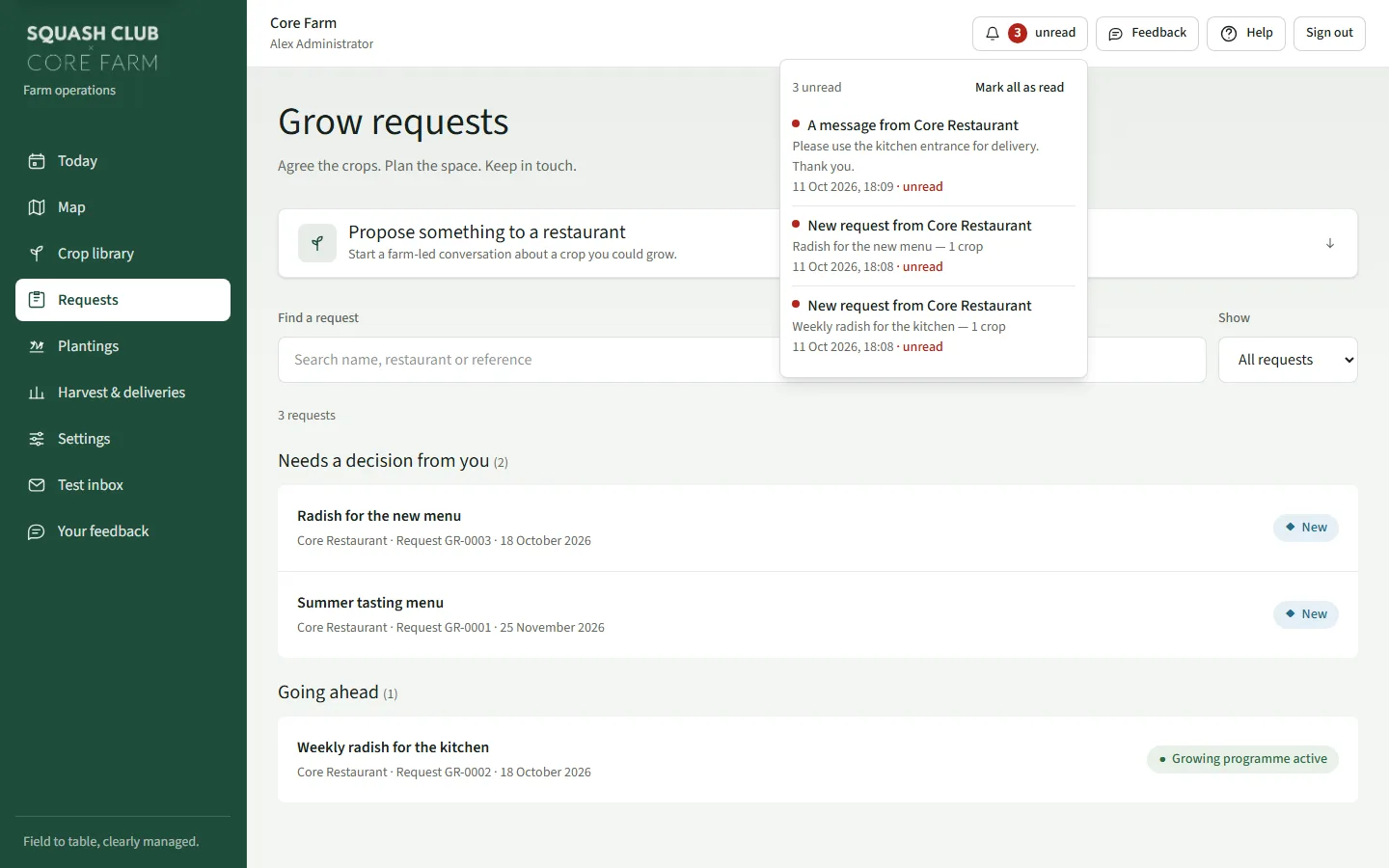
Reviewed 2026-10-16. This is a guide to current behaviour; the app may change. Actions depend on your permissions.