Getting started
Save safely and recover unfinished work
Know what is a draft, what is saved, and what to do when a result is uncertain.
Watch the walkthrough · 0:53
Save and recover unfinished work
Narrated demonstration. Use Play, pause or replay at your own pace. Use fullscreen for small details. The written steps below remain available.
Download video: Save and recover unfinished workRead the transcript
Guided forms keep big jobs manageable. Complete the visible step, use Next, and return with Back or a step button to review your own choices.
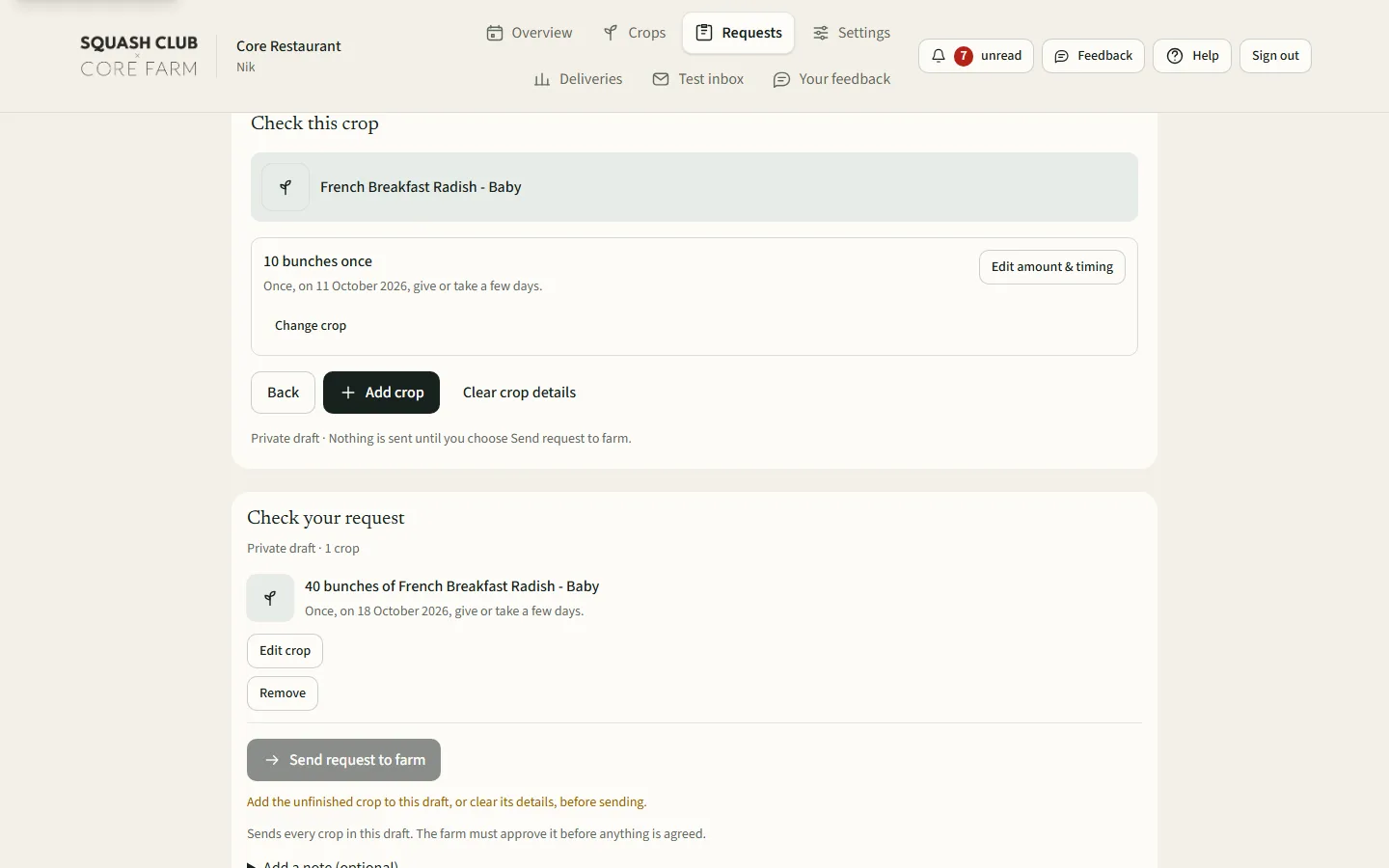
Check the review summary, then choose the final action when ready. A draft save, Add crop and Send have different consequences; wait for the saved confirmation.
If saving is refused, read the message and correct the named field. Supported forms retain entries while open; return to the earlier step if that is where the correction belongs.
If the connection drops or the result is uncertain, keep the form open and check the saved record or history separately. The app does not automatically queue actions offline.
When a colleague has changed a record, compare the latest version before reapplying your edit. After saving a delivery draft, reopen the saved preparation to edit it.
Jump to a section
Use a guided form
- Complete the visible step, then choose Next or the labelled next action.
- Use Back or a step button to review earlier details. The review step shows the proposed result.
- Choose the final Save, Add, Send or Confirm action, then wait for its success message or saved record.
Example
Adding a request crop takes Crop → Amount & timing → Check. 'Add crop' saves a private line; the later 'Send request to farm' submits the whole request.
Moving between steps is not saving
Crop, request-line, routine and delivery forms keep their earlier step fields while you move around the same form. Required details are still checked when you finish.
Opening help in a separate tab keeps the form open. It does not save the form, and closing or reloading that form can still lose entries.
When a save is refused
- Read the message beside the form. Correct the named field, missing detail, date, quantity or permission problem.
- Protected notes, replies and several operational forms keep their entries after a failed save while the form remains open. Return to earlier steps if a correction belongs there.
- Submit again after correcting the problem. Wait for confirmation before moving on.
Example
A crop profile is missing a required yield field. Open the highlighted growing-details group, fill the missing value, then save again.
When the connection drops
- Keep the form open. Reconnect before trying to save; the app does not queue farm or restaurant actions to send automatically later.
- If the result could not be confirmed, check the relevant saved record or history in another tab before repeating the action.
- If it is already saved, continue from that record. If it is absent, retry the retained form as instructed.
Example
A reply times out. Check Conversation first: the server may have saved it even though the confirmation never reached your phone.
What is and is not retained
Retention varies by form. Request replies, notes, crop-line edits, feedback and several field/delivery forms protect input during refused or uncertain saves. This is not a promise that every form survives browser closure, reload or sign-out.
The visual planting workspace has its own draft restore/clear controls where offered. A restored draft is not a reserved bed or a saved commitment, and a farm estimate must be confirmed again.
Once a delivery draft is confirmed saved, the entry form becomes a saved-result view. Use Open saved preparation to edit the actual saved draft rather than typing into an old successful form.
When somebody else changed the record
Some edits carry the version you opened. If a colleague saves a newer version, the app refuses the stale edit rather than silently replacing their work.
Keep your entries, open the latest record separately and compare them. Refresh when you are ready to reapply the intended changes to the latest version.
Example
Two people edit a crop line. The second save needs a review of the first person's change; it must not overwrite that change without warning.
See the screen
Reviewed 2026-10-11. This is a guide to current behaviour; the app may change. Actions depend on your permissions.