Administration
Review a farm or restaurant team
See membership status, outstanding invitations and the farm's new-request notice setting.
Watch the walkthrough · 0:45
Review a business's people
Narrated demonstration. Use Play, pause or replay at your own pace. Use fullscreen for small details. The written steps below remain available.
Download video: Review a business's peopleRead the transcript
Choose the business to review, then Manage staff or Manage users. Check its name and account type before continuing; farm and restaurant memberships are separate.
Read each person's roles and membership status, then open their record for allowed changes. A person may have access to one business and none to another.
Review invitation email, proposed roles, status and expiry. Withdraw a still-pending invitation sent to the wrong address; accepted memberships are managed through the person's record.
On a farm's Notifications section, choose everyone who can see requests or administrators only, then save when ready. This setting changes new-request notices, not request access.
Jump to a section
Review the business's people
- Choose Manage staff or Manage users for the intended business, or open the team from its Settings.
- Review the Users or Staff list. Each person's roles and membership status describe their access to this business.
- Open a person for role or access changes. Use the invitation section for a new colleague.
- Use All organisations as a system owner, or Back to settings as a business administrator, to leave the team screen.
Example
A person may be active at one business and absent from another. Review the specific membership rather than treating a login as global access.
Check invitations
Outstanding invitations lists pending or sent invitations with the email address, proposed roles, status and expiry date. A separate email state distinguishes queued, sending, provider accepted, refused, failed or uncertain results.
Use Resend email when its wait allows. Expired invitations have a separate section; issue a fresh invitation through the form without deleting that history.
Withdraw an outstanding invitation that was sent to the wrong person or is no longer needed. An accepted membership is managed through the person record instead.
If inviting is not permitted, the screen explains the missing permission rather than offering a failing form. No grantable roles means this account cannot issue a suitable invitation.
Example
Withdraw a still-pending invitation with a misspelled email, then send a new invitation to the corrected address.
Choose who hears about new requests
- On a farm's people page, an authorised settings administrator opens Notifications.
- Keep Tell everyone who can see requests enabled to notify eligible staff, or turn it off to notify administrators only.
- Choose Save setting and wait for confirmation.
Example
A small farm can notify its whole request team. A larger farm can route new-request notices to administrators while other authorised staff still see the queue.
This changes notices, not permission
The setting controls farm-directed request notices, including messages and decisions as well as new requests. It does not change who can view, review or work on requests.
The setting is farm-only because a restaurant does not have the same incoming farm request queue. Relevant restaurant notices go to eligible restaurant users.
See the screen
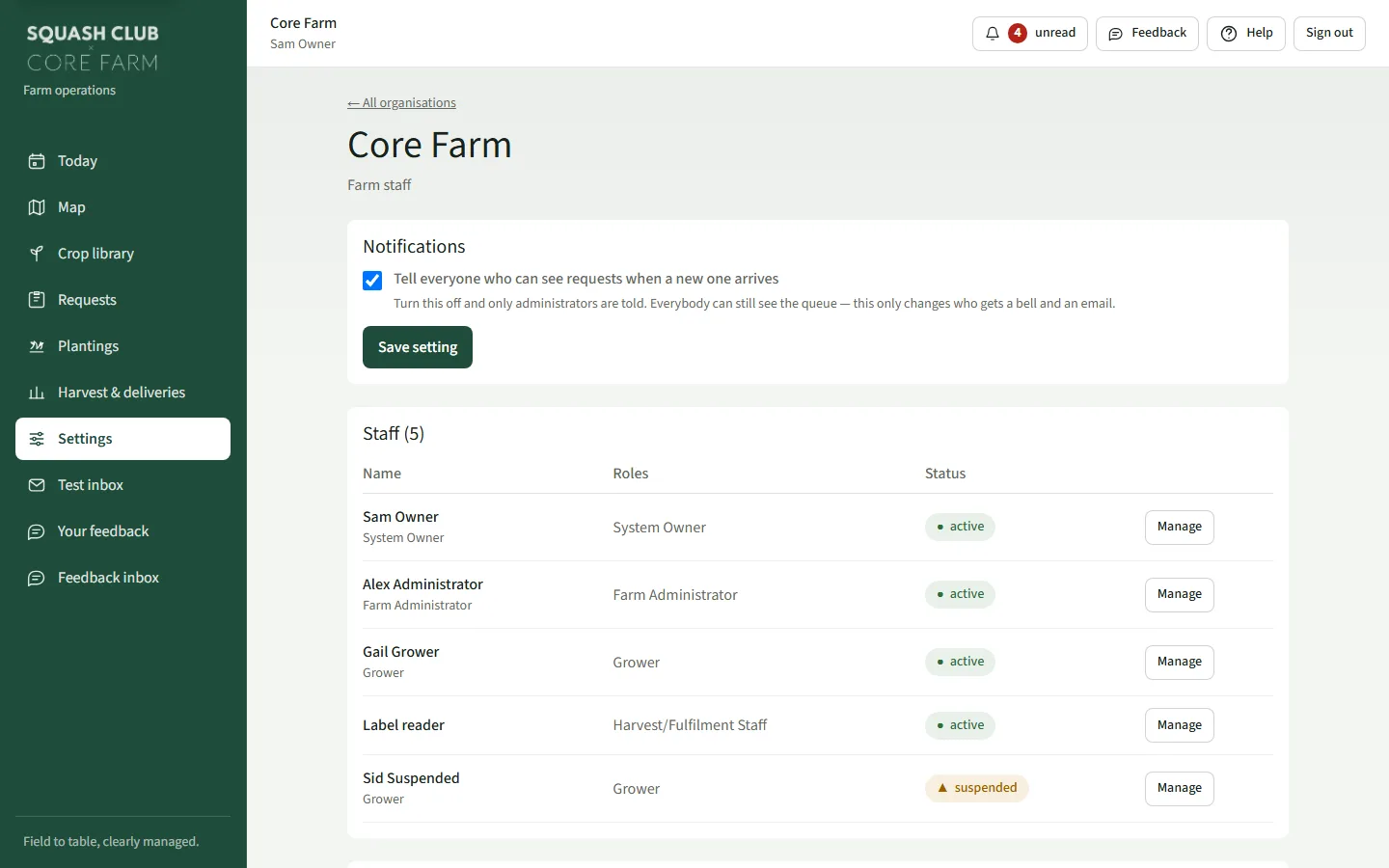
Reviewed 2026-10-16. This is a guide to current behaviour; the app may change. Actions depend on your permissions.