People and access
Manage invitations, roles and staff access
Make deliberate access changes while preserving people and their history. For invitations, follow the written steps; video and screenshots may show an earlier flow.
Watch the walkthrough · 0:51
Manage roles and staff access
Narrated demonstration. Use Play, pause or replay at your own pace. Use fullscreen for small details. The written steps below remain available.
Download video: Manage roles and staff accessRead the transcript
Open the right business team and enter the invitation email and optional name. Choose only the offered roles the person needs, and read their explanation before granting wider access.
Send the invitation when ready. The invitee checks the business and roles, then chooses their own password. Review status and expiry before replacing an expired or failed invitation.
Open the person, check their status and select the roles you may change. Higher roles can remain read-only. Save and wait for confirmation; a new edit requires a fresh review.
Suspend access with the displayed-name confirmation and an optional reason. Restore suspension when appropriate. Permanent removal has no ordinary Restore action; rejoining uses an invitation and retains history.
Your own membership and the last administrator have safeguards.
Jump to a section
Invite a person
- Open the correct farm or restaurant team and enter the invitation email and optional name.
- Choose at least one offered role. Read the short explanation or open What these roles can do before granting wider access.
- Choose Send invitation. A new account follows the email, chooses Continue to review invitation, checks the business and roles, confirms its own password and joins. An existing account signs in normally and joins without replacing its password.
- Check the outstanding invitation and its separate email status. Use Resend email when available, withdraw a wrong invitation or issue a fresh invitation after expiry.
Example
Invite a field worker as Grower rather than Farm Administrator when they need growing plans and field records but not people and library administration.
Roles and email limits
The offered farm roles can include System Owner, Farm Administrator, Grower, Harvest Fulfilment, Order Manager and Read Only Adviser, depending on what you may grant. Restaurant roles are offered only in their appropriate business.
Role summaries explain their purpose; actual permission checks determine each operation. Farm administrators cannot grant system-owner authority simply by changing the form.
Resend email retains the same outstanding invitation. There is a wait of at least a minute between requests, a longer wait after an uncertain result, and at most five email requests for one invitation. An expired invitation requires a fresh issue; its history remains.
Email provider accepted means the service accepted that request, not that the person received or joined it. Queued, sending and uncertain results also need the appropriate inbox or status check. A saved invitation can still exist after a mail error; do not issue duplicates or repeat an uncertain send immediately.
Change a person's roles
- Open the person from the business's list and check their name, business and status.
- In Roles, select the roles you intend them to hold. Existing roles above your authority are shown read-only.
- Choose Save roles and wait for confirmation. If the record changed since you opened it, reload, review the newer state and try the intended change again.
Example
Add the appropriate fulfilment role when a colleague takes on delivery preparation. Removing a role should reflect work they no longer need to perform.
Safeguards
The interface does not let you silently strip a higher role you cannot administer. The server also checks grant scope, rank and the current version.
Self and last-administrator safeguards can refuse changes that would create an unsafe administration state. An offered checkbox does not override those rules.
Suspend, restore or remove
- For an active member, type their displayed name in Suspend access, add an optional reason and choose Suspend access.
- For a suspended member returning to work, choose Restore access. Their retained roles become usable again.
- For a suspended member whose access should end, type their name under Remove permanently and confirm removal.
Example
Suspend a departing colleague promptly. If they return temporarily, restore the suspension; if permanently removed, send a new invitation to rejoin with their history attached.
Why removal is different
Suspension retains membership and roles but removes current access. Permanent removal has no Restore button; rejoining uses a new invitation.
You cannot suspend or remove your own membership from this screen. Sensitive access changes are audited; the optional suspension reason is recorded there.
Removing access does not delete the person's past field records, decisions or attribution.
See the screen
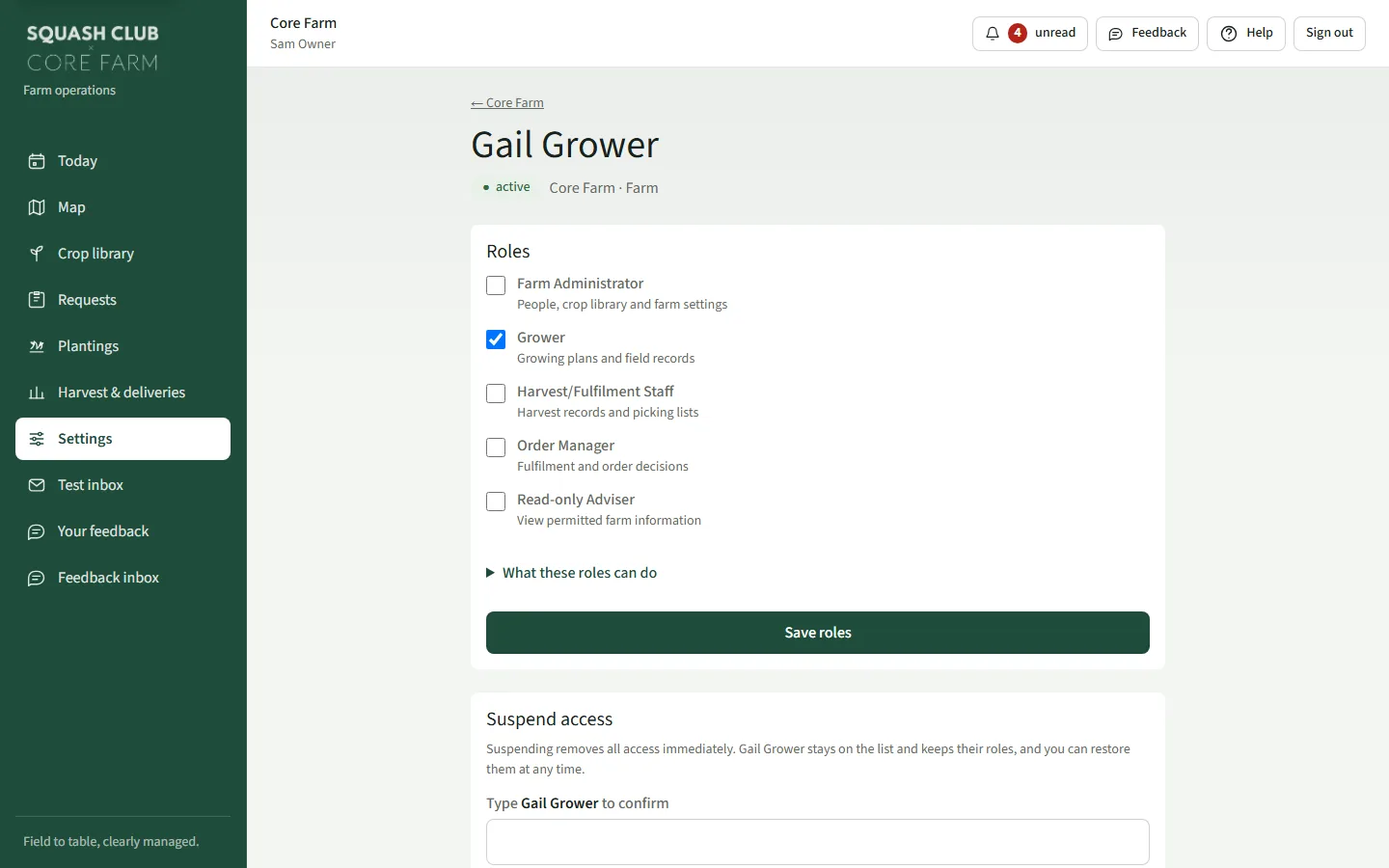
Reviewed 2026-10-16. This is a guide to current behaviour; the app may change. Actions depend on your permissions.