Restaurant
Follow growing, changes and the conversation
Read the farm's plans and shared updates without confusing estimates with actual deliveries.
Watch the walkthrough · 1:01
Follow progress and talk to the farm
Narrated demonstration. Use Play, pause or replay at your own pace. Use fullscreen for small details. The written steps below remain available.
Download video: Follow progress and talk to the farmRead the transcript
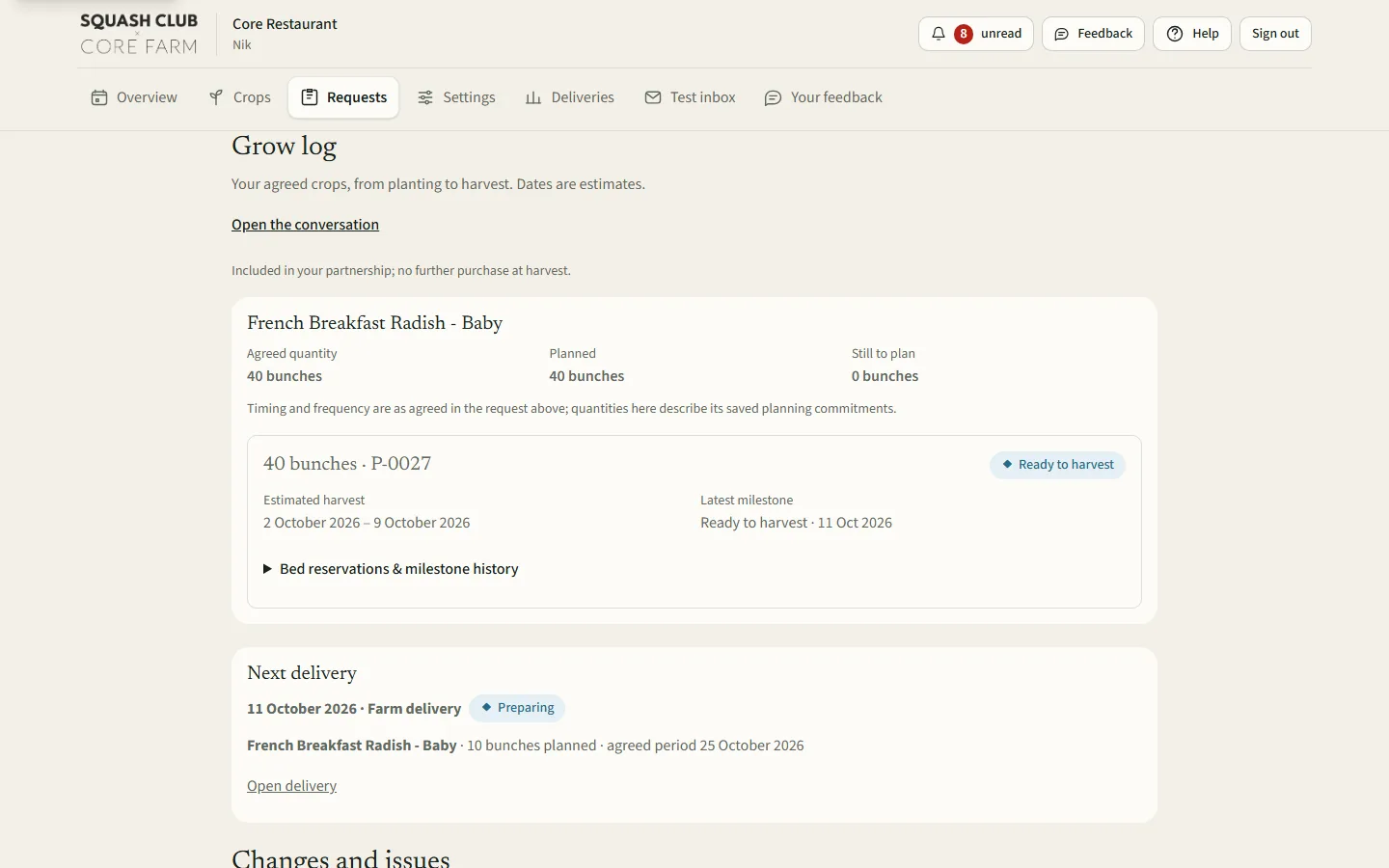
Open the agreement's Grow log. Compare agreed, planned and still-to-plan amounts, then inspect bed reservations and milestones. Extra growing allowance does not automatically increase your agreement.
Growing updates are news deliberately shared with your restaurant. Open earlier updates for context and retry an image if needed. Private farm notes and unpublished drafts are not part of your shared view.
Changes and issues records revisions, delays and shortfalls with explanations. A reported problem alone does not change the agreement. Farm revisions show the reason and notify you without another acceptance step.
Use Conversation to ask about progress or reply to a question. Send your reply and wait for confirmation. After an uncertain send, keep the entry and check the conversation before repeating it.
Check Next delivery and the named shipment period. Planned, packed, sent and received are separate facts. Repeating balances reset per occurrence; old and corrected entries retain their history.
Jump to a section
Read an agreed crop's progress
- Open an accepted request and choose Grow log.
- Compare Agreed quantity, Planned and Still to plan. Open each planting's Bed reservations & milestone history for its reserved dates and actual milestones.
- Check Estimated harvest and Latest milestone. A sowing plan is not an actual sowing record; a harvest milestone is not a shipment.
- Use Open the conversation to ask about progress or a date warning.
Example
An agreed 100-head crop may have 60 heads planned and 40 still to plan. The farm may divide the programme over several plantings and beds.
Plants are different from supplied produce
The farm can grow extra plants to allow for losses. With an explicitly confirmed estimate of one head per plant plus 20% extra, 100 requested heads suggests 120 plants.
Other products or units need matching library yield assumptions or an entered farm estimate. The restaurant's agreement remains 100 heads; extra plants do not automatically increase it.
Cancelled planting sections remain as history and do not count toward the active plan. Date warnings identify saved schedules that need farm review; the app does not rewrite past assumptions silently.
Read growing news and pictures
- Scroll to Growing updates for farm news and photos deliberately shared with your restaurant.
- Open Earlier updates for older entries. Use the photo's retry control if its image cannot load.
- Use Conversation to ask a question or comment on an update.
Example
The farm shares a dated photo of the salad bed and a short growth update. The kitchen reads it in this agreement's grow log, then asks about the first cut in Conversation.
What stays private
Farm-only notes, draft growing updates and other restaurants' commitments are not your shared grow log. Lifecycle facts show approved milestone kind and date, not private farm-event prose.
Growing updates and photos are scoped to the chosen agreement and appear only after publication. Withdrawn updates stop being shared; restaurant users do not publish or edit farm field records.
Understand agreement changes and problems
Changes and issues shows recorded revisions, delays, expected shortfalls or crop problems. Open issues remain flagged until the farm records their resolution; Change history holds earlier entries.
An agreement revision shows before and after details and a shared reason. The farm can update the agreement and notify the restaurant without another acceptance step.
A reported problem alone does not change agreed quantities, plantings or sent facts. A revised delivery range is an estimate.
Example
If a one-off 40-bunch agreement becomes 30 in total after 10 were sent, 20 remain. It does not mean another 30. Discuss the change in Conversation if it affects the menu.
Use the shared conversation
- Choose Conversation on the request, read the latest messages and decisions, then enter Reply to the farm.
- Use Latest message or Reply to jump within a long conversation. Open Earlier messages or Request history for older discussion and status-only events.
- Choose Send reply and wait for confirmation. A reply to a farm question returns the request to the farm's attention.
- If sending is uncertain, keep the entry and check the conversation before trying again.
Example
'We can use the smaller heads, but please keep the first delivery in the same week.' This is a message for discussion, not an automatic agreement edit.
Follow shipments and next delivery
Next delivery links to the relevant preparation, ready or sent delivery. Planned and packed quantities are displayed separately.
Shipments records what left the farm against each agreed period. Open Earlier periods or Earlier shipments for older history. Voided entries stay visible but do not count in totals.
A one-off agreement shows agreed in total, sent and remaining. For repeating supply, check the named Week starting or Period due; the allowance resets for each occurrence.
Example
Two sends of 6 and 4 bunches fulfil a 10-bunch week. That does not remove next week's 10-bunch allowance.
See the screen
Reviewed 2026-10-11. This is a guide to current behaviour; the app may change. Actions depend on your permissions.